Category: Windows

  • Gaming and Financial Tech: How Forex Back Office Software Can Help Developers Manage Game Revenue

    Gaming and Financial Tech: How Forex Back Office Software Can Help Developers Manage Game Revenue

    One of the most interesting trends of late has been the collaboration of the gaming and financial technology (fintech) industries. Gaming and fintech are among the most rapidly growing industries of recent times.

    The gaming industry has levelled up from regular games to features such as online multiplayer systems, in-game transactions, and even virtual economies. Gamers are now engaging in all forms of transactional activities such as buying and selling of virtual goods and currencies, along with betting and trading activities.

    Forex trading games represent one unique case study of innovation from the harmony between the gaming and forex industries. These are designed to teach a player about forex trading while he is entertained. Such a game needs to use strong back-end systems that will simulate real market conditions.

    This brings us to the point of this article – Forex back-office software and how they can be adopted in the game development process.

    Forex Back Office Software

    Forex back office software is designed to support administrative operations for forex trading. They provide the necessary infrastructure to execute such vital tasks as managing clients’ accounts, maintaining liquidity, processing transactions, tracking trades, monitoring compliance, and performing other similar tasks. By relieving them of these tasks, forex back office software helps smooth the operations of brokers, ensuring minimal risk and maximum operational efficiency.

    Key Features of Forex Back Office Software

    Some of the most salient features of Forex back office software are:

    • Transaction Processing: The software is competent to process trades smoothly, right from the order execution process up to settlement. It also generates reports and reconciles financials.
    • Account Management: The software is in charge of maintaining the accounts of several clients, reconciling their account balances, and even managing deposits and withdrawals of the clients efficiently.
    • Compliance and risk management: Forex Back Office is able to monitor the level of compliance with regulatory standards. They verify that all trades are regulatory compliant. They also monitor the risks the business can be exposed to and mitigate market volatility risks.
    • Reporting: The back office of Forex applies analytics to market and user data for reporting on insights such as financial performance, trading activities, and other useful information to drive strategic decisions.

    Application areas of Forex Back Office to Game Development

    The following are the areas where game developers can adapt some of the unique features and infrastructure of the Forex back office software

    Simulation of Real-world Trading

    Developers usually attempt to simulate real-world trading activities and market conditions in their trading games. A successful simulation in the virtual world will require sophisticated infrastructure to support large-scale transactions. This infrastructure can be made possible with the integration of Forex back office software. It allows developers to provide features like liquidity management, automated settlement, and margin trading. These features help to make the gaming user experience more immersive and fulfilling because of their realism.

    Currency management

    Many online games use virtual currencies or assets valued in the real world, with in-app purchases. There are those games that have a trading aspect, and such need appropriate currency management. Through Forex back office software, it’s possible to manage such currencies by collecting data in real time, monitoring the assets, accounting for them, and reconciling the balances. This further allows transaction tracking and fraud, manipulation, or inflation/deflation to be traced in the game. Finally, the software allows the developers to provide an interchange feature where players within one game are able to exchange currencies.

    Regulatory Compliance

    It is already designed to handle regulatory concerns and provides tools for AML procedures, KYC protocol, and other compliance management-related matters. It ensures that game developers are adhering to legal requirements and local laws.

    Security

    The real-world simulated transactions in trading games often expose users to hacking, fraud, and other similar financial crimes.

    Security options include advanced encryption, multi-factor authentication, and other security protocols that are available in this Forex back office software.

  • chrome://net-internals/#dns – How to Clear Your DNS Cache in Google Chrome

    chrome://net-internals/#dns – How to Clear Your DNS Cache in Google Chrome

    chrome://net-internals/#dns is a Google Chrome URL to Clear the DNS cache. The feature is not available in general settings and to edit the DNS cache you have to visit this URL. In this article, We will walk you step by step and guide you to clear your DNS cache in Google Chrome.

    Google Chrome is a popular web browser with over a billion users. Almost 80% of the internet is browsed using Google Chrome. Due to such heavy usage, every data is cached on Google Chrome to speed up the browsing. However, for some reason, if someone wants to Clear their DNS cache, it might get difficult as the process is a little complex. Thankfully, we have found an easy solution for you to clear your DNS cache on Google Chrome quickly.

    How to Clear DNS Cache?

    Clearing the DNS cache on Google Chrome is a lengthy process. To simplify this, we have broken down the whole process in a step-by-step guide with screenshots for easy understanding. Just follow the steps mentioned below and you will be able to Clear the DNS cache without any problem.

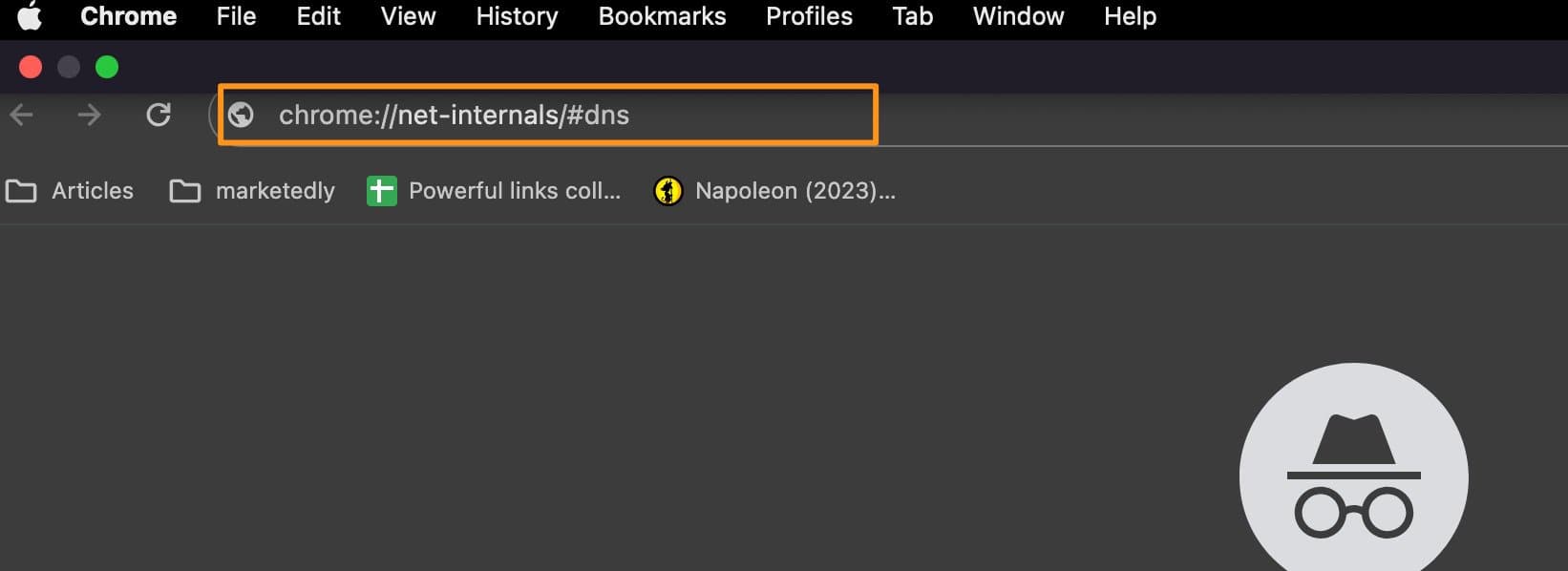
    Step 1: Visit chrome://net-internals/#dns

    On your PC or mobile, open Chrome browser and type in the following text in the URL bar “chrome://net-internals/#dns” (Without quotes).

    chrome net internals

    Step 2: Clear Host Cache

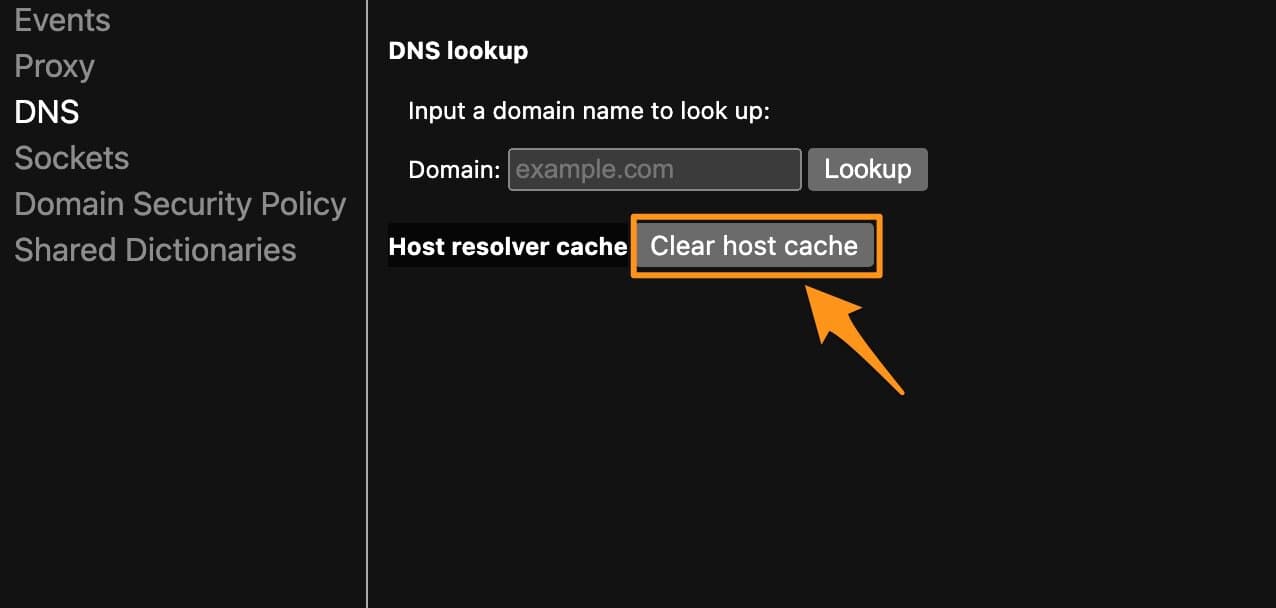
    Under DNS Lookup, search for “Host resolver cache” and click the button next to it that says “Clear Host Cache”.

    clear host cache

    Step 3: Restart Chrome

    Once you click the “Clear Host Cache” button, nothing will happen and no successfully executed type message will be displayed but in the background, the process is done and you have successfully flushed the DNS cache on Chrome.

    Now, close the Chrome browser completely and relaunch it.

    Step 4: visit chrome://net-internals/#sockets

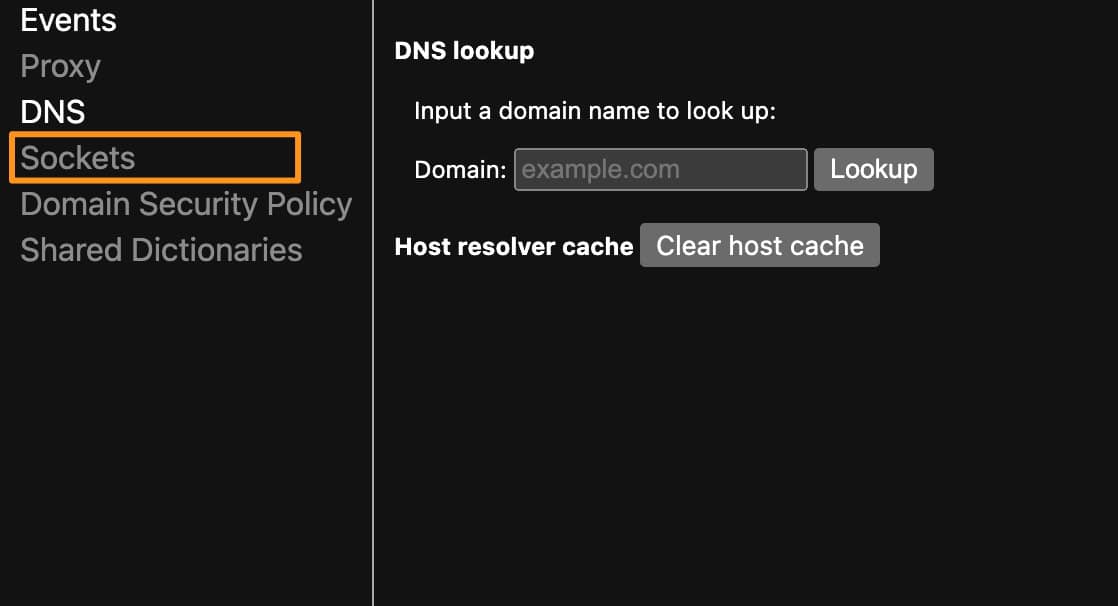
    The next step is to visit chrome://net-internals/#sockets on your Chrome browser by visiting the link directly or clicking the “Sockets” option in net internals.

    net internals sockets

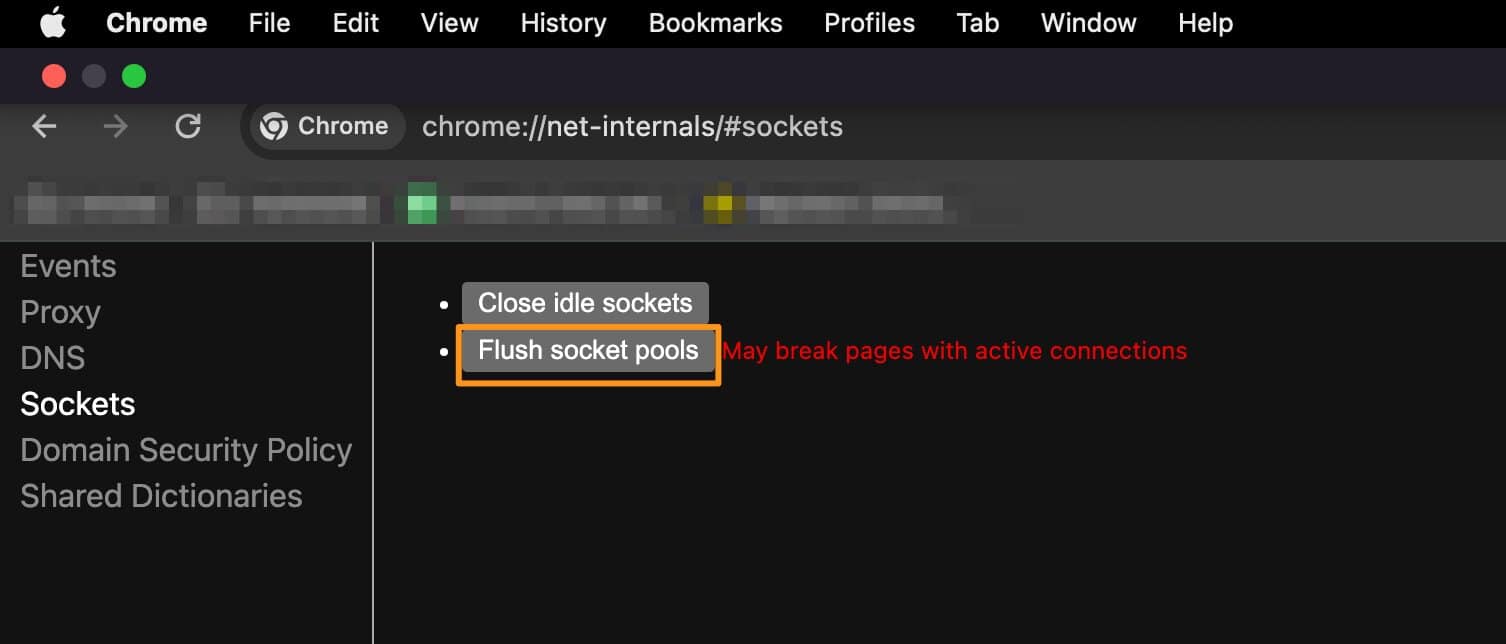
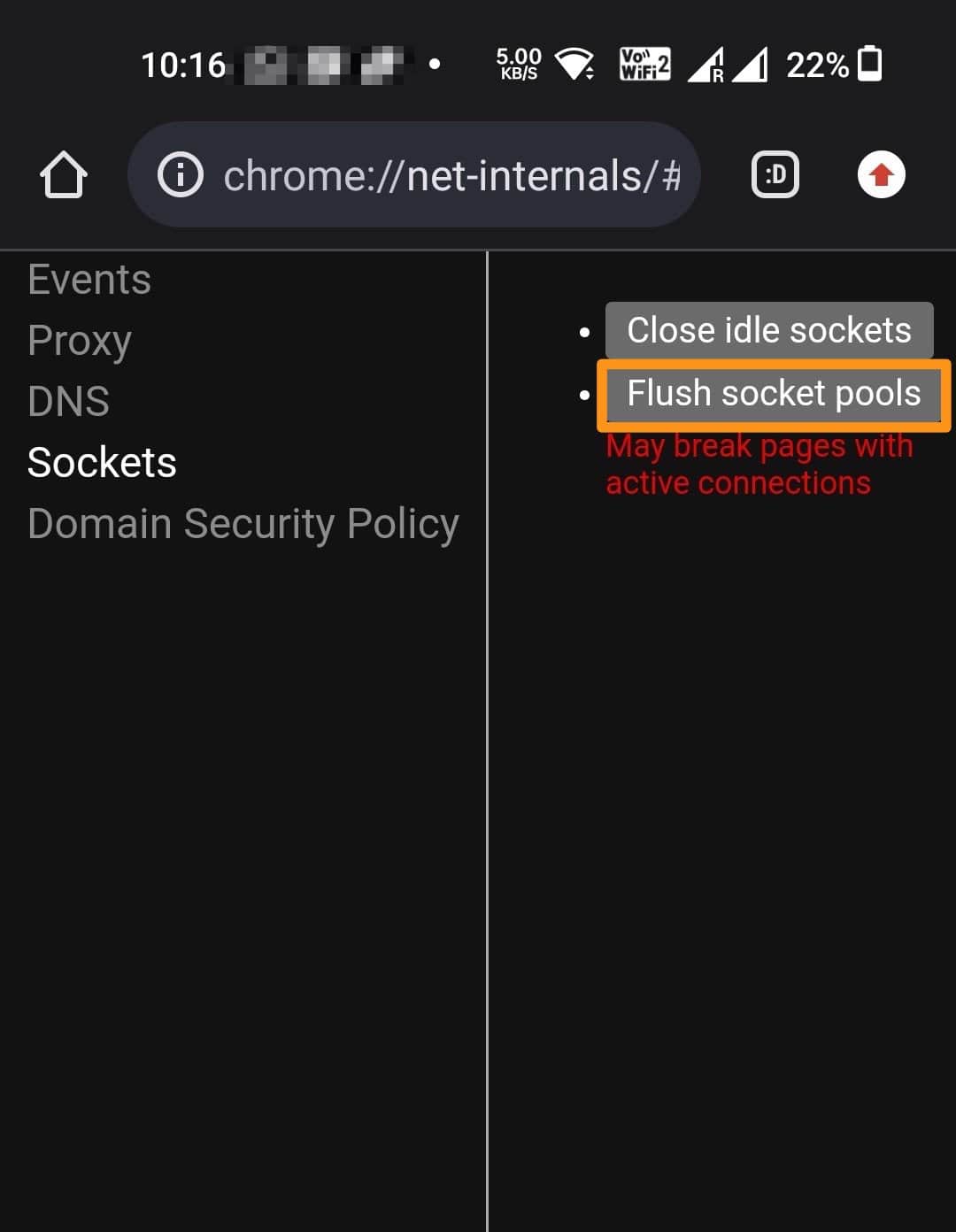
    Step 5: Flush Socket Pools

    under the Sockets tab, click the “Flush Socket Pools” button, and restart your Chrome browser.

    flush socket pools

    Now you have successfully flushed all the DNS cache on your browser and you can freely visit any website without getting DNS error or any other error.

    What is DNS Cache

    As of now, we know how to solve DNS-related errors by flushing the DNS cache but what exactly is the DNS cache? A DNS cache is a record of the IP address of the website you are visiting. Every domain name has a unique server IP to access the files DNS or Domain name server is responsible for mapping these domains to the relevant IP address.

    These records are generally stored on your browser such as Chrome. Sometimes, the server IP changes or the website is moved to a new domain, in such conditions, the Locally cached DNS is not able to detect the IP and you might get various DNS-related issues.

    Why you should Flush out the DNS cache?

    Flushing out the DNS cache means you are removing the existing DNS records of the websites that you visited in the past. If your previously visited website is not opening due to bad DNS cache then flushing the Cache is the best option.

    After flushing the Cache, whenever you visit a website, the browser will ask for the IP and other details again and update it in the DNS records locally.

    What is chrome://net-internals/?

    chrome://net-internals provides the browser activities-related information and helps debug various Socket, DNS, Domain Security Policy, and proxy-related issues. Net internals are very useful for troubleshooting issues like DNS problems, clearing bad proxies, reapplying proxy settings, flushing socket Pools, and Removing a domain from the Security Policy.

    The net internals network viewer has been moved to another URL chrome://net-export. You can visit this URL to start logging into the disk.

    How to Clear DNS Cache on Chrome Mobile App

    Android

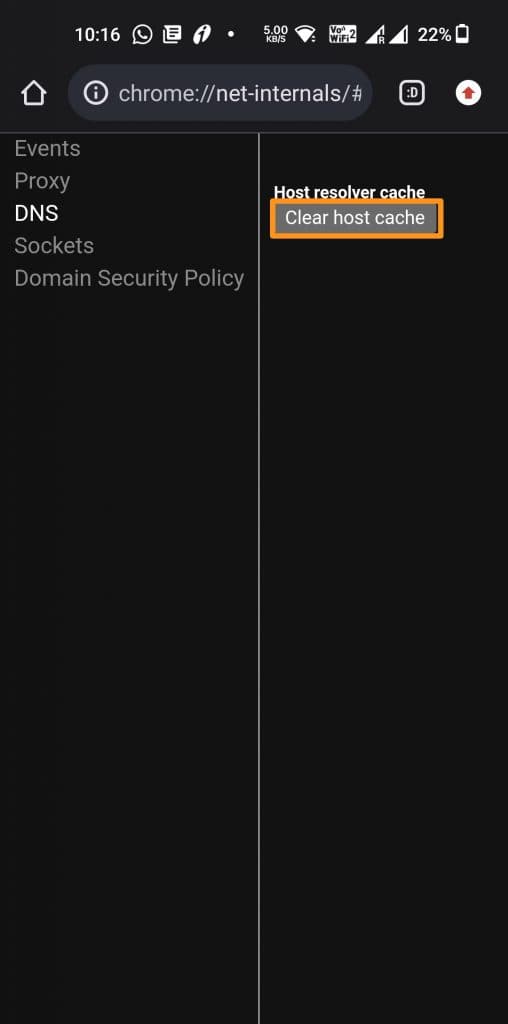
    Step 1: To Clear DNS Cache on the Chrome Android app open the app on your mobile and visit this URL – chrome://net-internals

    Step 2: Now click the DNS option from the left-side menu and click the “Clear host Cache” button.

    net-internals dns mobile

    Step 3: Visit the Sockets option from the same left-side menu and click the “Flush socket pools” button

    net internals flush socket pools.

    Step 4: Restart your Chrome browser by clearing it from the Recent Apps section and opening it again. This will reflect the changes you just made and all DNS cache data will be removed from the Chrome Android app.

    iOS

    The Chrome app doesn’t have a direct option to clear the DNS Cache from the browser. Instead, we will follow a different method to flush the DNS cache using iOS settings.

    Note: This will flush the DNS cache for all browsers.

    Step 1: On your iOS device, click the Settings app and choose General Settings.

    Step 2: Select the Transfer or Reset Phone option from the menu and select “Reset” when asked.

    Step 3: On the following window, click Reset Network Settings and confirm that you want to reset network settings if prompted.

    Finally, Open the Chrome Browser and visit the website that was previously giving you the DNS error. If it doesn’t work please restart your iOS device to apply the changes we made.

    Final Words

    chrome://net-internals/#dns is a URL that helps you to visit Chrome net internals to debug Chrome activity and make necessary changes to DNS and others. In DNS, it allows you to flush the DNS Cache and reset it to solve any DNS error on Google Chrome.

    Please let us know if you have any questions regarding chrome net internals or DNS cache by commenting below.

  • Office Deployment tool for Microsoft Office – (Complete Guide)

    Office Deployment tool for Microsoft Office – (Complete Guide)

    The Office Deployment Tool (ODT) is a very effective and easy-to-use tool for configuring Office 360 ProPlus on your client’s computer or deploying Microsoft Office on a larger scale. It is a Windows Command line tool that offers great functionality to create and deploy Microsoft Office 360 seamlessly as you would normally do on a Cloud Platform. The Office Deployment tool can help you to save time as well as money by eliminating the lengthy installation process.

    After researching and using the tool for a few months now, We have come up with a perfect guide to help you install Microsoft Office using the Office Deployment tool in just a few minutes. This is a step-by-step guide and you can successfully install the software by just following the given steps.

    What is the Microsoft Office Deployment Tool

    Before proceeding further, let’s understand the working and usage of the Office Deployment tool for a better understanding of the installation process.

    The Office deployment tool (ODT) by Microsoft is the latest tool for businesses and tech-support companies to install Microsoft Office 365 and its related apps such as Microsoft Excel, Powerpoint, Word, Outlook, and many more using a simple command-line interface. This tool is used to install Microsoft 365 and its associated apps on your client computers.

    The ODT tool gives you more control over the installation process such as which Product/App you want to install or which language to select, etc. It also helps you with cloud storage and product updates with very easy tools.

    How to Use The Office Deployment Tool

    Now that we know the usage and working of the Office deployment tool. Let’s see how you can use it to install Microsoft Office 365 on your client computer.

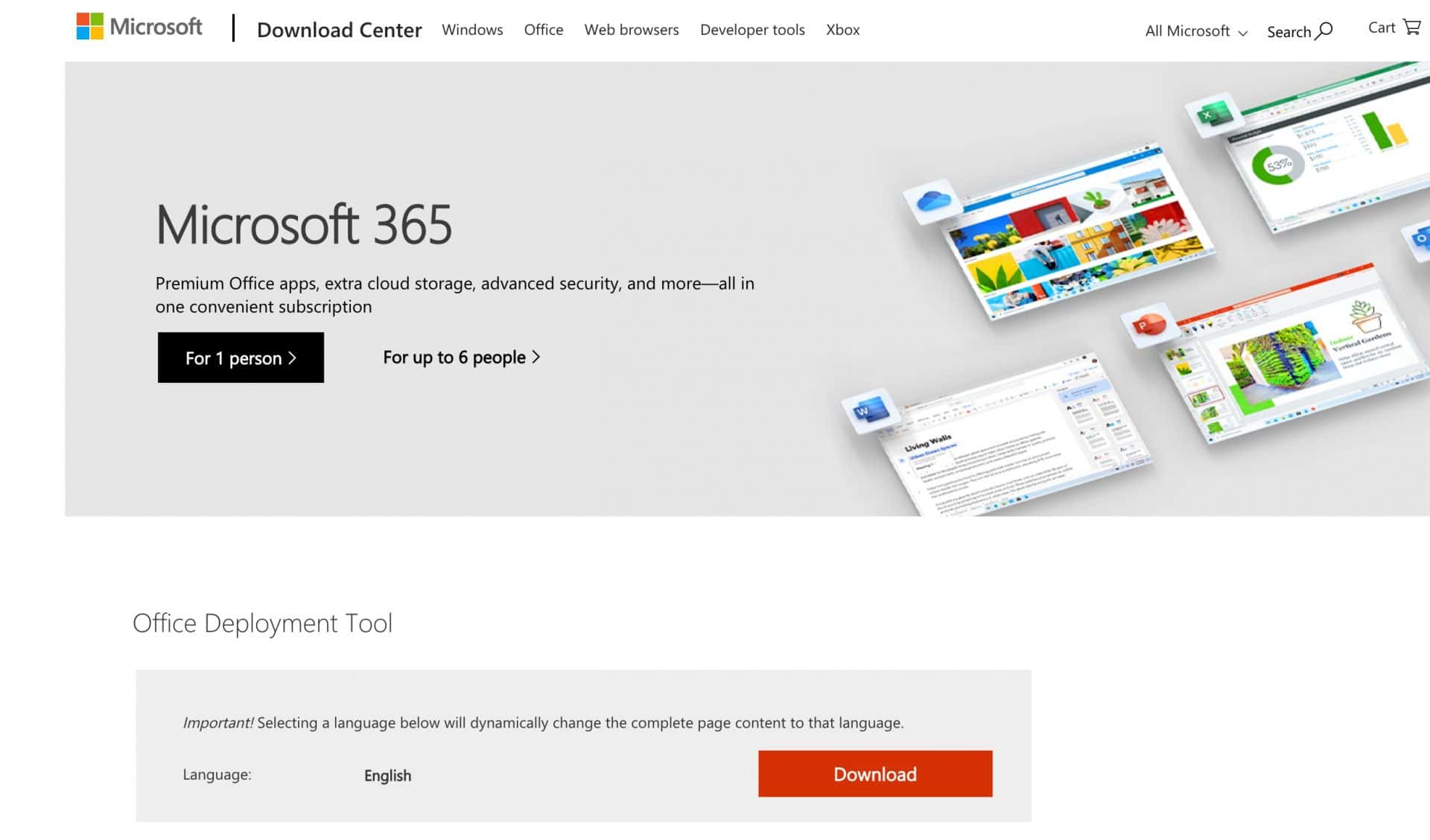
    Step 1: Download the Office Deployment tool from Microsoft.com

    The very first step is to download the latest version of the office deployment tool from the official website. The program is available for Windows 10, 11, Windows 8.1, Windows Server 2016 & Server 2019. You might have to select the appropriate version before clicking the download button.

    Download office deployment tool

    Once you have downloaded the tool, Right-click on the zip file and select the “Extract Here” option to extract the files.

    Step 2: Prepare your XML Configuration file (Custom)

    once you have successfully downloaded and installed the Office Deployment tool, the next step is to prepare your XML Config file that contains the installation instructions for Office 365 such as Specifying the products to install, language, and other installation options.

    To Create the XML file, you can either use a default text editor such as Notepad or download a third-party tool such as Sublime Text or Notepad++. Windows also offers you a tool called Office Customization tool (OCT) to edit this file.

    For this tutorial, We will give you an example of an XML file for Office 2019. Before Proceeding, please open a text editor such as Notepad on your Windows PC and Press “CTRL + S” or Save the file with the name “Config” and extension “.xml“. For example, Config.xml. For more information on creating an XML config file, you can refer to the Windows Deployment tool’s Documentation page.

    Below is a sample of the Config.xml file that you can copy and paste into Notepad.

    <Configuration>

    <Add OfficeClientEdition=”64″ Channel=”CurrentPreview”>

    <Product ID=”O365ProPlusRetail”>

    <Language ID=”en-us” />                               

    <ExcludeApp ID = “OneDrive” />

    <ExcludeApp ID = “OneNote” />      

    </Product>

    </Add>

    </Configuration>

    Once you have created the config.xml file, Save it in the same folder where the Office Deployment tool files are saved.

    Step 3: Preparing Your Configuration file using the Office customization tool

    Office customization tool is a free online tool offered by Microsoft to create your Custom XML configuration file. This tool is easy to use and offers you a lot of options to manage your installation.

    Below are the steps to generate your XML Configuration file for office deployment tools using the OCT.

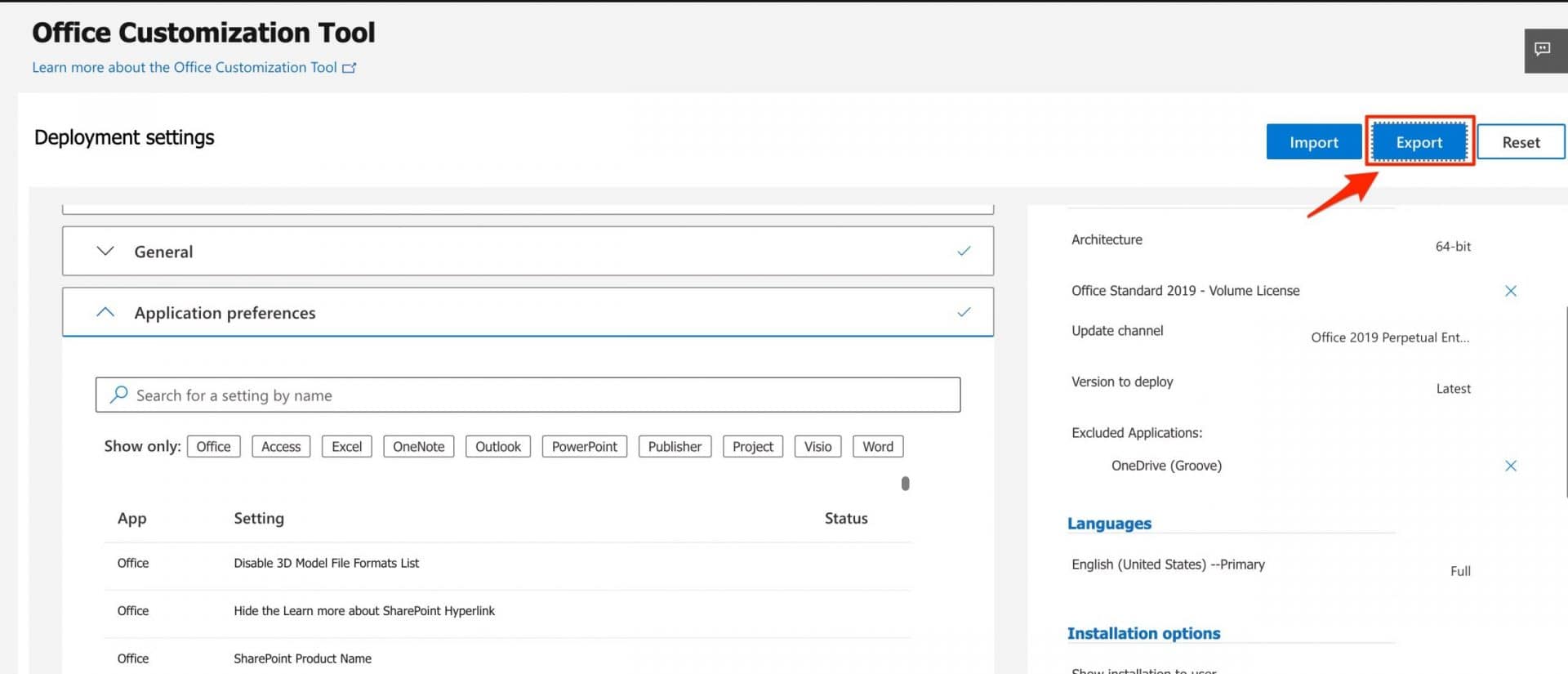
    1. Visit the office customization tool page on the Microsoft website by visiting this link.

    office customization tool interface

    2. Under the Deployment settings, You will find many options such as Products and releases, Language, Installation, updates, Upgrades, etc. Just click the down arrow beside every option and select your appropriate setting.

    3. For this tutorial, We will be using the following settings for generating the XML file.

    Architecture – 64-bit.

    Office suites – Office standard 2019.

    Visio, Project, Additional Products – Blank

    Language – English (United States)

    Leave all other options as it is except for application preference. Under this option, select the applications you want to install on your computer.

    Finally, Click the Export button given at the top-right corner of your screen, Accept the terms and conditions and your configuration.xml file will be downloaded.

    Step 4: Download office Source files

    If you have not already downloaded the office installation files then this step is a must for you. Else, if you already have the files on your System then you can skip this step.

    To Download the office source files, open the command prompt Window on your Windows PC by typing “CTRL+R” and entering “CMD” in the dialog box. On the Command prompt window, Head over to the folder where the Setup file and config.xml files are saved and enter the following command.

    setup.exe /download config.xml” (Without quotes)

    Step 5: Download the Office 365

    Once you have the installable files downloaded on your Client’s Computer, it’s time to install and configure them on the PC. On the command prompt window, enter the following command.

    setup.exe /configure config.xml” (Without quotes)

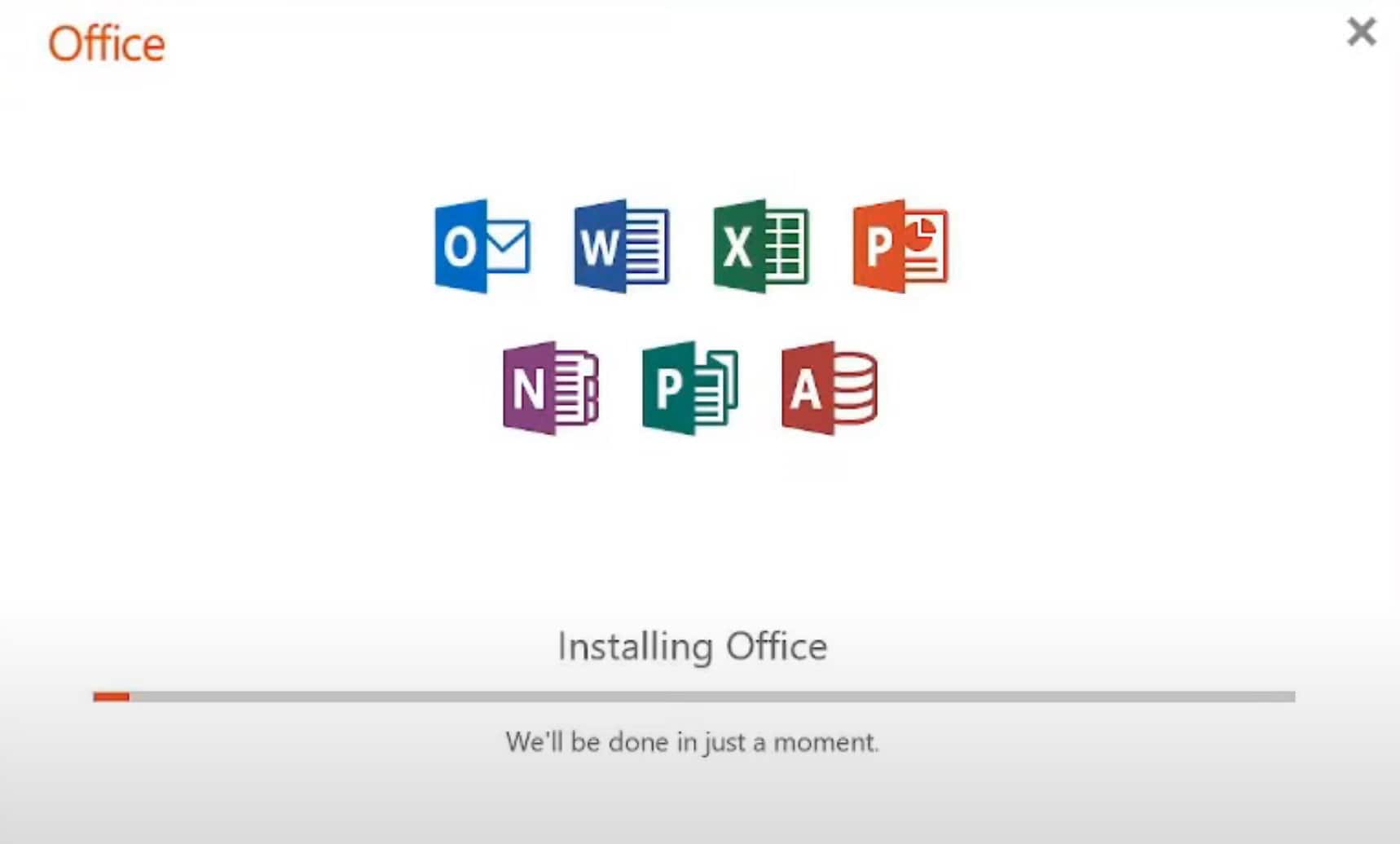
    Now the installation window will appear and the selected Microsoft Office Apps/Programs will begin to install. Just wait until the process is completed and then you can start using the Office Apps instantly on your Computer.

    installing microsoft office using deployment tool

    Conclusion:

    This method of installing Microsoft Office or its related apps might be new for some people, but it is one of the most effective and easy ways to get Office installed on your Computer. Needless to say, it also gives you more control over what you want to install and how you want it to be installed on your PC.

    Creating the Configuration XML file might be a trick as you can get confused because of the code, however, you can use the Office Customization tool (OCT) to overcome this limitation and just download your configuration file as per your needs.

    Please let us know if you need any further information regarding the Office Deployment tool by Microsoft. You can ask your questions or queries by commenting down below.

  • How to Make a Copy of a Word document – Microsoft Word

    How to Make a Copy of a Word document – Microsoft Word

    If you want to make a copy of a document in Microsoft Word to use the style or format without touching the original version of that file then you have arrived at the right article. We will discuss all the possible ways and methods that can help you to duplicate a word document without any hassle and continue your work easily.

    Microsoft Office is a powerful software that is used by all professionals and college students around the world. It is part of the Microsoft projects where they have developed great tools for PC such as Windows and gaming tools such as Xbox one for gamers. The software has multiple sub-programs such as Microsoft Word, Microsoft Excel, Powerpoint, and Outlook. These programs enable you to create documents, Presentations or just add data in a tabular format in Excel for a better representation. Microsoft Word is a widely used Software among all. because of its ease of use and friendly interface, the software is used to create all sorts of documents.

    In this article, we will help you to duplicate or make a copy of your Word document in just a few steps.

    Why Make a copy of a Word Document

    There can be many reasons to make a copy of the original word document. You might want to make a copy of the Word Document for multiple reasons, we are listing a few of those reasons below.

    • You want to copy the style and formatting of the existing document and use it for creating other such documents.
    • To Save the file to another device or to make a secondary backup that can be restored if you delete or lose the original copy of the word document.
    • If you work on the Document with your team and do not want to lose the original version of the file in case someone edits it.

    Whatever the reason may be, Copying and keeping the duplicate version of your Word Document can always come in handy and save you a lot of time in case of emergency.

    How to make a Copy of Single Page document in Microsoft Word

    Now that we have discussed the reasons to make a copy of a word file, let’s see how you can make a copy of a word document that has only one page or single page document. Here are the steps.

    • Open the file in Microsoft Word on your Laptop/PC
    • Use the combination of CTRL + A to select all the text.
    • Use CTRL + C to copy the content.
    • Now go to file >> New and create a new document.
    • On this new document, use CTRL + V to paste the content that you just copied, and click CTRL + S to save the document.

    How to make a Copy of a Word document in Microsoft Word

    Making a copy of a word document with multiple pages is as simple as the first method of making a copy of a single-page document. The steps might be different but you can easily duplicate the document by following this method.

    Step 1: Go to the folder of the original file that you want to copy.

    Step 2: Right-click on the file and select the copy option. Similarly, you can also click on the file to select it and then press CTRL + C to copy it.

    step 3: Now, in the same folder Right-click on the blank space and select the paste option from the menu. Similarly, You can also use the combination of CTRL + V to paste the file into the folder.

    That’s it, you have successfully created a copy of the original Microsoft Word File. Now you can open the file that you have just created and start editing it without hurting the content and formatting of the original file.

    Also Read:

    How To Unfreeze A Mouse on a Laptop

    How to Fix Not Registered on Network Error

    Google Drive Still Processing the Video

    Make duplicate Word Documents on Mac

    if you own a MacBook then also the method is the same and all you have to do is to copy and paste the document into the same folder or into a different folder of your choice. However, unlike Windows computers, the keys on your Macbook might differ and thus you can follow this tutorial

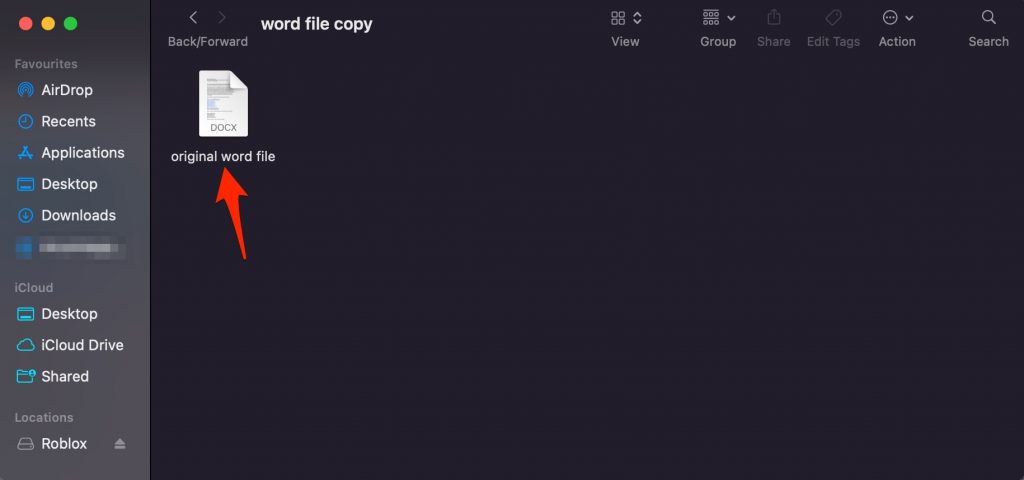
    Step 1: Open the folder where you have saved your original Word document that you want to make a copy of.

    microsoft word file


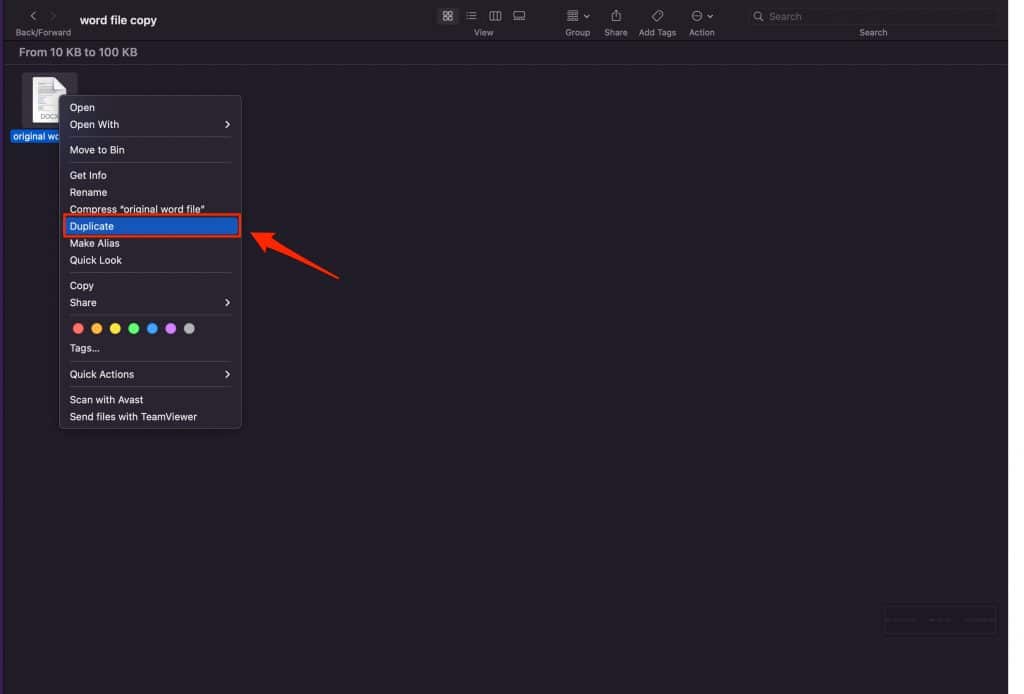
    Step 2: double-click on the file name and click on the “Duplicate” option from the list.

    make word document duplicate mac

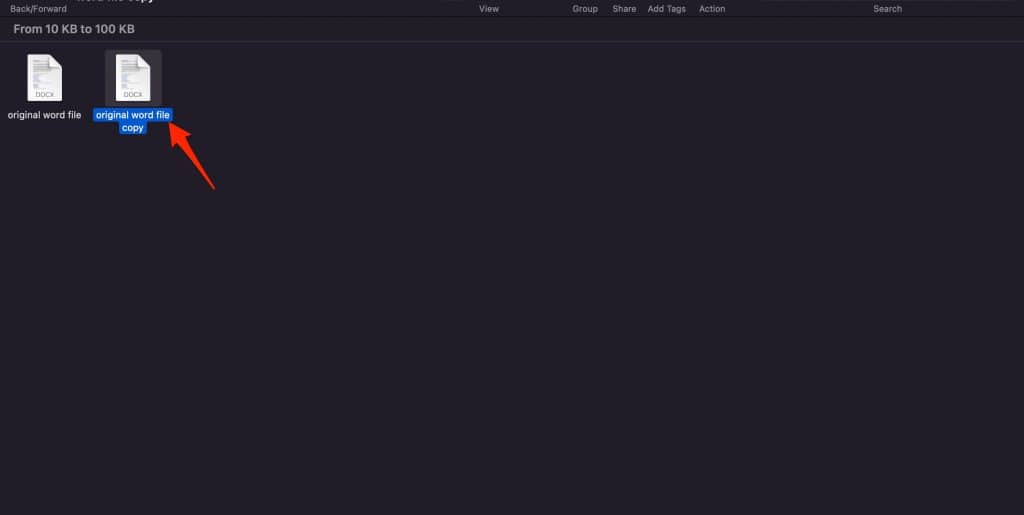
    step 3: That’s it, you have successfully made a duplicate copy of a word document on Mac.

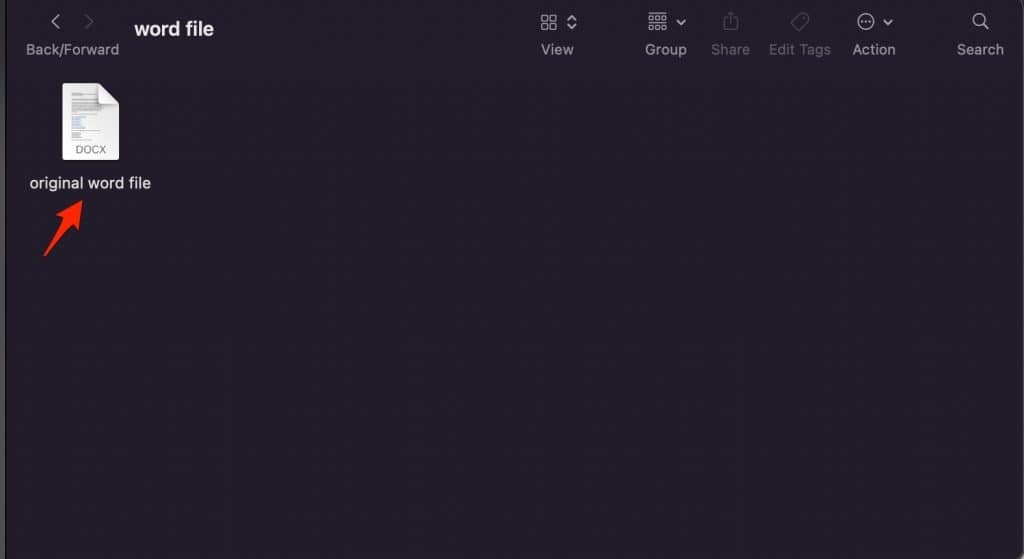
    original word file copy microsoft word mac

    However, if you want to make a copy of the file in some other folder then follow these steps.

    • Go to the folder on mac where you have stored the word document.
    • double-click on the file and select Copy.
    • Now, head over to the folder where you want that file to be added and again Double-click on the blank space and select the “Paste” option from the list.

    copy paste word document mac

    How to make a Word File Copy on Linux

    Similar to Windows and Mac, you can also copy and paste the file on Linux if you have a GUI. Simply follow these steps.

    • Go to the folder where you have stored the original Word file that you want to copy.
    • Right-click on the file name and select the Copy option from the list.
    • Now go to the folder where you want to add the copied file, Right-click on the blank space, and select the “Paste” option.

    Final Words

    If you don’t want to lose sensitive or important information on any Word document then making a copy or a backup is always a great option. It also always you to edit the duplicate file without any worries of losing any information while you are editing. Copying or duplicating files also helps you to copy the entire format and use it for future projects or Word documents by simply opening the duplicate file and starting the work.

    Please let us know if you still find it difficult to make a copy of a Word file in Microsoft Word on Windows 7,8,19 or Mac and Linux and we will happily help you.


  • How To Unfreeze A Mouse on Laptop – Working methods

    How To Unfreeze A Mouse on Laptop – Working methods

    A frozen mouse on your laptop might prevent you from performing important tasks on the machine. Many people find it difficult to just navigate through the options using the keyboard and it’s really not a handy method for regular users. If your mouse cursor is stuck and not moving or your touchpad is not responding properly then this article is for you.

    In this article, we will help you to understand the situations in which your mouse might freeze or stop working completely, and how you can easily fix this issue by self-diagnosis and troubleshooting methods that are mentioned in this post.

    Why My Mouse is not Working on My Laptop

    Before moving to the solutions, let’s first discuss the possible reasons for your mouse to stop functioning on your laptop. Most of the time, if a mouse is not moving then it’s not directly related to your touchpad or mouse being the culprit.

    There are multiple factors that might prevent your mouse from functioning properly and freeze it. These reasons might include the following.

    • Computer crashes or freezes itself.
    • You disabled the touchpad by mistake.
    • The mouse driver not working properly.
    • A third-party application is causing the problem.

    These are just a few reasons that might cause your mouse to not function properly or freeze completely. Below are the methods that you can use to resolve this issue on your own.

    #1. Restart your Laptop

    If you have not restarted your computer yet then we suggest you do that first and it might actually solve the issue. See, a lot of the time, our computers get frozen due to multiple background activities or tasks that are running. These tasks may overload your RAM and cause your system to slow down. So Please do a restart and see if it solves your problem, if not, then follow the next method.

    #2. Re-enable the Touchpad

    The most common reason for your mouse to freeze is that you pressed a key or combination of some keys that has locked your touchpad. This is a common function found on all laptops. This is actually a useful function in case you want the cursor to be locked in case you might accidentally move the cursor. However, many people don’t know about this and they are stuck if the mouse gets disabled by accident.

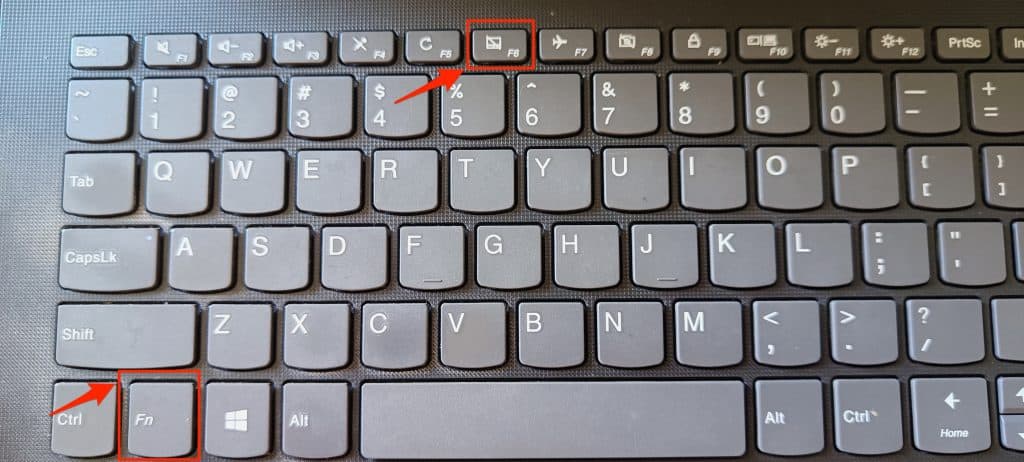
    To unfreeze a mouse, first check for the touchpad-like icon on some of the keys on your laptop. You might find the key on the top row of your keyboard. It’s generally a function key and depending upon the brand and manufacturer of your laptop, it might be F5, F6, F7, or F9. If there’s one, click it and see if it works. If it doesn’t then press the combination of Fn + the function key that has the trackpad icon. You can find the Fn key beside the Ctrl key in the bottom-left corner of your laptop.

    enable disabled touchpad windows

    #3. End Trackpad Background Process

    Every hardware and software that works with our laptop has a process running in the background. due to multiple reasons, the trackpad software might have frozen or become unresponsive which in turn prevents you from using the mouse. The best way to deal with this is by ending the Trackpad process which will reset it and any bugs and glitches caused by it.

    Here are the steps to end the Trackpad background process using the task manager and your keyboard.

    Step 1: Press and hold Alt + CTRL + DEL keys on your laptop and use the arrow keys on your laptop to toggle between options to select “Task Manager” and press enter.

    Step 2: Again use the down and up arrow keys to toggle between different processes and look for the process which has “Touchpad” text in it.

    Step 3: Select the task and Press E to end it.

    Step 4: Now restart your computer as restarting will automatically resume the task. Once you restart, see if the mouse is working on your laptop or not.

    #4. Update Mouse device settings

    Another major reason for your cursor to stop moving on your laptop or mouse to get stuck on your laptop is the disabled Mousepad properties. To fix this, follow these steps.

    Step 1: Launch the Run app by pressing Windows + R on your keyboard or by searching for Run app using the default windows search bar.

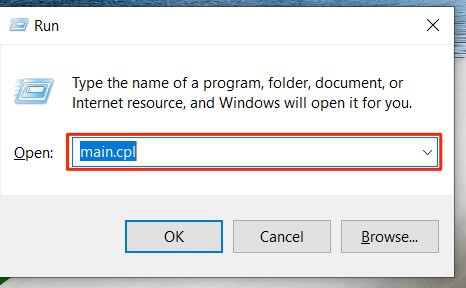
    Step 2: Enter “main.cpl” in the Run input box and hit enter.

    laptop mouse settings windows

    Step 3: Now head over to the device settings tab using the horizontal menu and select your mouse name under devices. Click Enable >> Apply >> Ok and exit the screen.

    Step 4: Finally, Restart your computer and see if the problem is resolved.

    #5. Update the drivers.

    Even after using all the methods that are given, if you are still not able to unfreeze your mouse on your laptop then you might want to update the mouse drivers. Sometimes, outdated or corrupt drivers might freeze your mouse on HP, Asus, or Acer laptops. Follow these steps to update your mouse drivers to the latest available ones.

    Press the Windows key on your keyboard and type “Mouse settings” in the default Windows search bar.

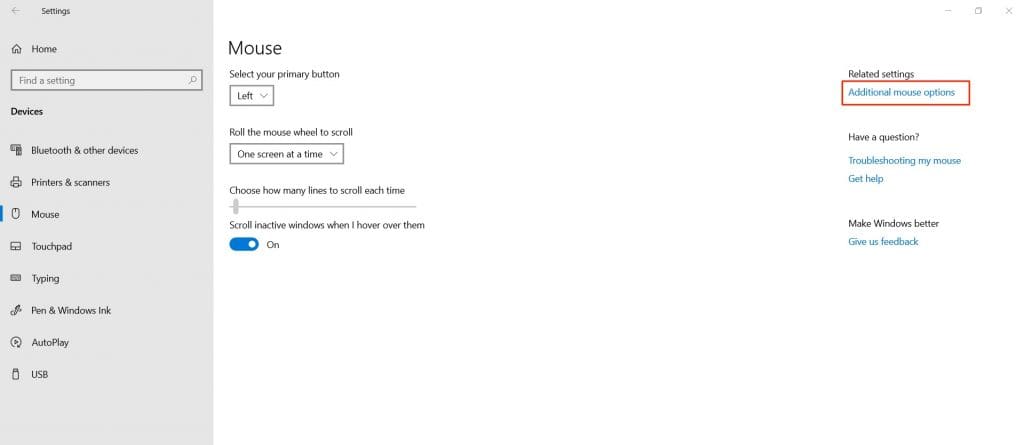
    Using the Tab button and arrow keys on your keyboard, head over to the Additional mouse options and press enter.

    unfreeze laptop mouse windows

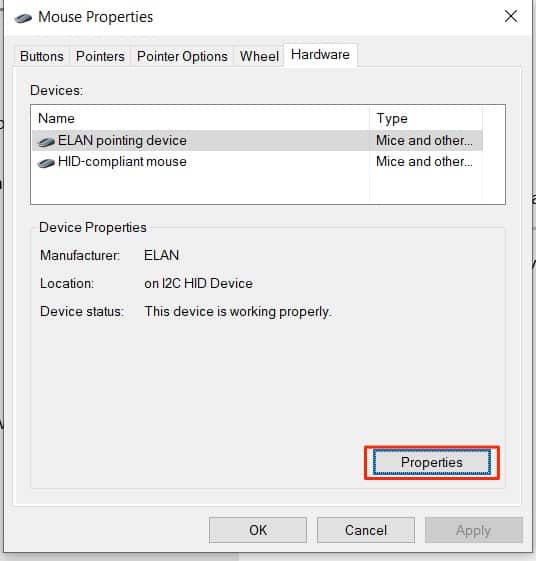
    Head over to the hardware tab by pressing “CTRL + Shift + Tab“. Using the arrow keys, click the Properties button.

    mouse touchpad properties

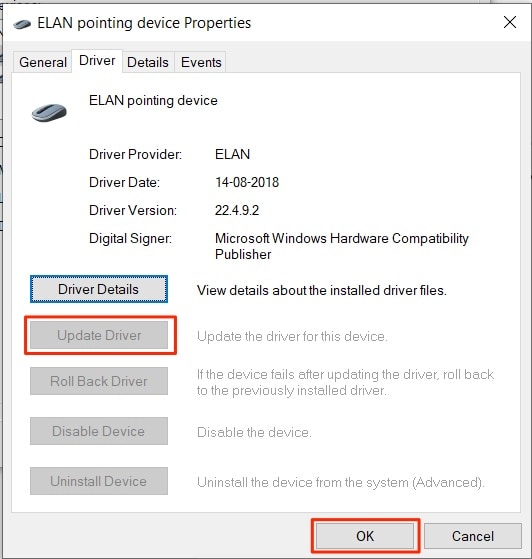
    Again, using the combination of CTRL + Shift + Tab, head over to the Driver tab. Use the arrow keys to navigate to the “Update Drivers” option.

    update mouse drivers windows

    If the driver update is available, then the button will appear bold, Just press enter and Windows will start searching for the latest available updates automatically. It will also download and install the updates if they are available.

    Once done, Restart your computer and see if the Mouse is working properly or not.

    Final Words:

    With a Frozen mouse on your laptop, it’s hard to navigate or perform any task. Thankfully, these are the working and easy-to-use methods that we are given in this article that will help you to get rid of a stuck mouse on your Laptop.

    Frozen mouse on HP, Asus, Acer, Windows, and Lenovo laptops is a common problems. However, using the methods mentioned above, you might easily resolve this issue on your own. If you still face the same problem then we recommended you contact the authorized service center of your laptop manufacturer for further assistance and they can help you to resolve the mouse not working on laptop issue.