Category: PC

  • Why GPU-Powered Workstations are Essential for Deep Learning Projects

    Why GPU-Powered Workstations are Essential for Deep Learning Projects

    Key Takeaways:

    Deep learning relies heavily on processing power, and GPU-powered workstations provide the capability to handle complex computations efficiently. With more cores and superior memory bandwidth, GPUs accelerate model training and inference, making them indispensable for deep learning applications. Their scalability and versatility further support many projects, from simple neural networks to sophisticated models with millions of parameters.

    Table of Contents:

    1. Introduction
    2. The Importance of GPUs in Deep Learning
    3. Architectural Benefits of GPUs
    4. Efficiency and Performance
    5. Scalability and Flexibility
    6. Cost-Effectiveness
    7. Conclusion

    Introduction

    Deep learning has emerged as a transformative technology, powering advancements across various fields such as healthcare, autonomous driving, financial modeling, and more. Central to the success of deep learning projects is the computational power that facilitates rapid data processing and model training. In this regard, GPU-powered workstations have become essential tools due to their parallel processing capabilities, which are crucial for managing the intensive workloads inherent in deep learning tasks. These workstations, equipped with graphics processing units (GPUs), efficiently handle vast amounts of data, making them ideal for training and deploying complex neural networks. The growing complexity of models and datasets in deep learning necessitates hardware that can keep pace, providing speed, accuracy, and scalability, which makes GPU-powered workstations indispensable for developers and researchers worldwide.

    The Importance of GPUs in Deep Learning

    Deep learning involves training neural networks with numerous layers and parameters, a process that demands extensive computational resources. While capable of handling everyday computational tasks, general-purpose CPUs often fall short when executing the massive parallel computations needed for deep learning efficiently. This is where deep learning tech comes into play, utilizing the specialized architecture of GPUs. GPUs consist of hundreds to thousands of smaller, more efficient cores that manage multiple tasks simultaneously. Unlike traditional CPUs optimized for sequential processing, GPUs excel at executing large-scale matrix multiplications, which are critical for the training process of neural networks. The high core count and superior memory bandwidth of GPUs significantly expedite these computations, reducing training times and enabling more complex models to be executed efficiently. This capability makes GPUs an integral part of any deep learning setup, facilitating rapid prototyping and testing of AI algorithms.

    Architectural Benefits of GPUs

    GPUs are architecturally optimized for the dense and complex mathematical operations that underpin deep learning algorithms. Their design allows for concurrent computations—executing multiple operations at once, which is key to dramatically speeding up tasks like matrix operations and vector processing essential for neural networks. This parallel architecture is particularly beneficial for convolutional neural networks (CNNs) and recurrent neural networks (RNNs), which are often used in image and sequence data processing. The architectural benefits of GPUs enhance processing speed and improve the precision and accuracy of deep learning models. These attributes facilitate the development of more robust and reliable AI systems, enabling researchers and developers to push the boundaries of what neural networks can achieve, from advancing medical diagnostics to enhancing automated systems.

    Efficiency and Performance

    The efficiency and performance of GPU-powered workstations are unmatched in deep learning. With the capacity to perform billions of calculations per second, GPUs are designed to handle the heavy lifting involved in training complex models. Depending on the model size and complexity, they transform what would typically be weeks of training on a CPU into days or even hours on a GPU. This efficiency extends to inference, where the trained models are deployed to swiftly generate predictions on new, unseen data. The performance gains from GPUs translate directly into faster innovation cycles and reduced time-to-market for AI applications. This competitive edge is crucial in rapidly evolving markets where being first often translates to industry leadership, making GPUs not just a tool of efficiency but a strategic asset.

    Scalability and Flexibility

    One of the standout features of GPU-powered workstations is their scalability and flexibility. As deep learning projects grow, they require a system that can scale with increasing complexity and data size. GPUs allow for seamless scaling across multiple units, distributing workloads efficiently and ensuring that resources are optimized. Modern deep learning frameworks and others provide robust support for multi-GPU configurations. This feature allows data scientists and engineers to expand their computational capabilities without extensively modifying their existing systems. Integrating with cloud resources further enhances this scalability, facilitating hybrid approaches that combine on-premises GPU power with the virtually limitless capabilities of cloud infrastructure, thus providing unmatched flexibility catering to diverse project demands.

    Cost-Effectiveness

    While the initial investment in GPU-powered workstations might seem considerable, they are cost-effective and highly advantageous in the long run. The significant reduction in training times and operational efficiencies translates to lower energy consumption and resource utilization. Engineers spend less time on training models, and organizations can deploy solutions more rapidly, which reduces overhead costs and accelerates project timelines. Moreover, the longevity and versatility of GPUs and their compatibility with emerging software frameworks ensure that the investment remains relevant as technology evolves. This future-proof aspect of GPUs makes them not just a choice for immediate performance but a strategic investment in the continuity and effectiveness of deep learning initiatives.

    Conclusion

    GPU-powered workstations have become the backbone of deep learning projects, providing the necessary computational muscle to train and deploy sophisticated models efficiently. Their parallel processing capabilities and architectural optimizations deliver unparalleled performance across deep learning tasks. As deep learning continues to revolutionize various industries, the role of GPUs will become increasingly significant. These powerful tools support the current demands of AI development and lay a sturdy foundation for future advancements. By investing in these systems, organizations can harness the full potential of AI, advancing innovation, and maintaining a competitive edge in a dynamic landscape. For academic research or commercial applications, GPUs offer the flexibility, scalability, and efficiency necessary for the next generation of profound learning breakthroughs.


  • How to Stop McAfee popups and notifications

    How to Stop McAfee popups and notifications

    Let’s agree that McAfee popups are annoying. They keep popping up everywhere while using your computer, or even while using the internet. Every now and then you will find someone asking, how to stop McAfee popups or notifications from appearing repeatedly. This question is all over the tech forums and the Q&A sites on the internet. Today, We will discuss why these pop-ups or notifications keep appearing and the way to disable McAfee popups from your Windows 10 PC, and Chrome.

    McAfee is a well-known name in the Antivirus industry and it has been protecting your computer from viruses and malware for decades now. The company ensures that its Virus database is up-to-date and it can tackle any small or big attack on your computer or personal information. Many small and big businesses, financial institutions like Banks, Tallyman Axis bank use McAfee to safeguard their portal from any other threats or attacks.

    If you are one of those people who are afraid of computer viruses, Malware, or spyware and want to keep your files and computer safe and secure from the attacks by keeping antivirus software such as McAfee but want to stop annoying popups that keeps appearing then this article is for you.

    How to Stop McAfee Pop-ups on Windows 10 PC

    The most common problem of McAfee pop-ups is faced by Windows and Mac users as these are the two widely used operating systems in the World. Let’s first discuss the steps required to stop McAfee popups on your Windows 7,8, or 10 PC.

    Step 1: Launch the McAfee antivirus program on your Windows computer.

    Step 2: Click the settings gear icon on the top-right corner of the program.

    Step 3: From the drop-down menu, Select “General settings and alerts” under the settings tab.

    Step 4: Now click the Information alert option to expand it. Uncheck the box that says “Don’t show an alert when the firewall is off”.

    Step 5: Now click the Protection Alert tab just under the previous one and uncheck the box here also.

    Step 6: Finally, Click OK to save your changes and exit the screen.

    That’s it, You have successfully turned off McAfee popups and notifications from appearing on Windows 10 or any other Windows PC. Please note that you can turn them on anytime by just following steps 1 to 5 and instead of unchecking the box, check it.

    Also Read MyLiveCricket.in Alternatives

    How to Stop McAfee Popups on Chrome

    Another problem people face with McAfee is their Chome extension. This extension scans every website that you visit and makes them slow. It also injects its own codes into the browser and the website that might ruin your experience. Moreover, if the extension feels that the website is not safe for you then it might block your access and you will have to visit the McAfee app and add the website to the whitelist which might take a lot of time.

    The simple solution to stop receiving McAfee popups or notifications on Chrome browser is by disabling or removing their extension. Here are the steps to follow.

    Step 1: Launch Chrome browser on your Windows PC or Mac.

    Step 2: Click the three dots icon on the top-right corner of your browser and select settings.

    Step 3: Click the extensions tab from the left-side menu. Similarly, You can also click More tools >> Extensions from the drop-down menu itself.

    Step 4: Look for the McAfee WebAdvisor extension and click the toggle button to disable it.

    Step 5: If you want to completely remove it from your browser then click the remove button and click remove again if prompted.

    Note: If you want to temporarily stop Mcafee security on Chrome then you can use the incognito mode where all the extensions are disabled by default. Just use the combination of CTRL + Shift + N to launch the incognito window on Chrome or any other browser.

    Disable McAfee Active Shield Prompt

    McAfee’s active shield prompt sends you a notification every time you try to install any third-party application, Open a file or folder, or visit any untrustworthy website. To disable the Active Shield prompt, follow these steps.

    • Launch the McAfee security program on your PC.
    • Under Security Center Information, select the configure option.
    • Click on Alerts >> Advanced.
    • Under Informational Alerts, click Do not Show Informational Alerts and click OK to save changes.

    Conclusion

    McAfee is a powerful and free antivirus software that protects your PC and important files, documents, and personal information from attackers and hackers. However, this free app comes with a lot of popups and notifications regarding product offers and discounts.

    You can surely minimize the amount of popups shown to you by simply following the steps we have give above and save yourself from annoying popups.

  • 127.0.0.1:62893 – Issues, Errors, Troubleshooting Detailed Guide

    127.0.0.1:62893 – Issues, Errors, Troubleshooting Detailed Guide

    127.0.0.1:62893 is a local IP address used by your computer network to communicate with itself. 127.0.0.1:62893 includes the IP and ports that the PC is using. This address is generally generated when you are testing your code on the browser or developing some application on your PC. If you have ever encountered such an address and wondered what it means and how it works then this article has got you covered.

    In this article, we will dig deep into the working of your IP address and ports and explain everything including its working and how you can use it for your needs.

    127.0.0.1:62893

    Let’s break down the complete address first for you to better understand the meaning of it and the purpose.

    127.0.0.1

    127.0.0.1 is a loopback address that is used for configurations and network software on your local machine without actually connecting to the internet or any other network. “127.0.0.1” is an IP address reserved for this type of work only. the IP address is part of a bigger range of IP addresses which ranges from 127.0.0.0 to 127.255.255.255.

    62893

    62893 is a port also known as a logical endpoint used to allow multiple services to run on the same network without conflicting applications on the network. The purpose of ports is to differentiate traffic intended for different applications. If you have ever logged into your router network then you must have come across the IP address and port combination.

    The Ports on your local computer range from 0 to 65535 where Ports 0 to 1023 are well-known ports generally reserved for the system. For example, HTTP is run on Port 80 while HTTPS is run on port 443. Port 49152 to 65535 are used for temporary purposes and can be removed once the work is done.

    Advantages of using 127.0.0.1:62893

    Now that we know what the IP address and Port is on your local computer. Let’s see its usage and advantages for using 127.0.0.1:62893

    Software development and testing

    Most software development and testing tools use the “127.0.0.1” IP address for testing purposes. this ensures that the software is only accessible locally and outside environment does not interfere with your application. This also ensures proper usage of local resources in your application.

    Performance and Speed

    Another major advantage of using 127.0.0.1:62893 to test your applications is that it is fast. Because you are running your application on “127.0.0.1” which is a localhost, you can compile and run codes faster with quick allocation of resources and eliminating any need for packet routing.

    Security

    Applications running on localhost 127.0.0.1 using the 62893 port are less likely to get any security issues as they are not directly connected to the external network. Even if you have an internet connection on your PC the applications running on this address are secure.

    Along with security, you also get to debug and run experiments on your applications in a controlled environment thus giving you more flexibility.

    Debugging and Troubleshooting

    Using localhost for debugging and troubleshooting your applications can be helpful to quickly fix errors and bugs without worrying about any external factor influencing your application. Server-client communication also becomes easy and it can facilitate a more efficient development process.

    Using 127.0.0.1:62893 on your PC

    While developing an application on your local machine, you might run an application program such as Apache, Nginx, or any other server application using third-party apps. Here is how you can do it.

    Step 1: Start the application on your PC using a third-party app or command line.

    Step 2: Write the desired code which you want to run on your PC.

    Step 3: You start your local web server, and it listens on 127.0.0.1 and a port, say 62893.

    Step 4: Open any internet browser on your PC, type the “http://127.0.0.1:62893/” IP address and port, and hit enter.

    Step 5: Now your browser will send a request to the IP address you have entered in the browser, in our case it’s “http://127.0.0.1:62893/“. While the application will send the response to the same address.

    This is the basic setup you can use to run applications on http://127.0.0.1:62893/ while developing and deploying your application on localhost.

    Common 127.0.0.1:62893 Isssues

    While working on localhost using the 127.0.0.1:62893 localhost IP and port can sometimes lead to various issues that can hurt your program or prevent it from running on your Computer. Understanding these common issues and their solutions can help you to solve the issues as soon as you encounter any. Below we have identified and listed a few such issues and their solutions for you to work on 127.0.0.1:62893 localhost without any interruptions.

    Issue 1: Port conflict

    Sometimes it might occur that two different applications are trying to access the same port which might get one or both applications to fail to load. or give an error message like “The Port is already in use”. or “Error occurred while connecting to 62893” on localhost.

    To solve this issue, You can either assign one application to use a different port or kill any one of the applications to allocate resources to other applications.

    Issue 2: Connection Refused/ Timed out

    This issue is very common if your firewall is active as the firewall prevents applications from accessing specific ports or IP addresses or both. In our case, if you are trying to access 127.0.0.1:62893 and get an error message like connection refused or timed out then you can turn off the Firewall or try running the application on another port.

    Issue 3: Permission Denied

    If the application shows you an error message such as “Permission Denied” on the Mac, Windows, or Linux operating system then you have to grant port permissions to the application before running it on your computer.

    Windows users can run the application as administrators while Mac and Linux users can run the application by giving “sudo” permission using CMD.

    Conclusion:

    By using 127.0.0.1:62893, you can create a better and more secure development environment that will enable you to develop robust technologies while testing, debugging, and learning about network communications.

    Developing applications on your localhost also ensures its safety, security, and non-involvement of external factors that might harm or slow down your development process.

    Please let us know if you have any questions or queries regarding 127.0.0.1:62893 and its usage.

  • How to Solve “errordomain=nscocoaerrordomain&errormessage=could not find the specified shortcut.&errorcode=4” Error

    How to Solve “errordomain=nscocoaerrordomain&errormessage=could not find the specified shortcut.&errorcode=4” Error

    “errordomain=nscocoaerrordomain&errormessage=could not find the specified shortcut.&errorcode=4” is an error generally faced by iOS users on Macbooks and other supported devices. The issue generally occurs when the iOS is not able to find the shortcut to the specific app that you want to start. In this article, we will discuss the ways to quickly fix this issue on your device.

    Before proceeding further, let’s first understand what “errordomain=nscocoaerrordomain&errormessage=could not find the specified shortcut.&errorcode=4” means and why this error occurs in the first place and what you can do to avoid such errors in the future.

    What is “errordomain=nscocoaerrordomain&errormessage=could not find the specified shortcut.&errorcode=4”

    The “errordomain=nscocoaerrordomain&errormessage=could not find the specified shortcut.&errorcode=4” simply indicates that the system is unable to locate the specific shortcut on your Mac/iOS device. The error can be seen on iOS-based Operating systems such as iOS 2.0+, iPadOS 2.0+, macOS 10.4+, Mac Catalyst 13.0+, tvOS 9.0+, watchOS 2.0+, and visionOS 1.0+.

    The nscocoaerrordomain is generated from iOS’ cocoa framework which is essential for running the apps on your device. the error message “could not find the specified shortcut” itself indicates that the system is unable to locate the shortcut for the program you are accessing. Finally, the errorcode=4 is generally one of many error codes that are generated while this error occurs.

    This is a very common error across all the devices and one can easily fix it. Below we are listing a few such methods that people have confirmed to be working for fixing this error.

    Why does errordomain=nscocoaerrordomain&errormessage=could not find the specified shortcut.&errorcode=4 occurs?

    Now that we know what this error is and what it indicates, let’s understand why this error occurs on your device. Now there might be more than 1 reason(s) so please go through all the possible reasons to see what could be the reason for the error on your iOS device.

    Code error while editing the file:

    This error is commonly faced by developers while working on iOS applications. if you are one of the coders facing this issue then please make sure that the code is compiled properly and there is no error or warning in your code.

    Deletion of Shortcut File:

    Another common reason is the deletion of shortcut files on your device. If you have recently deleted any file or group of files, try recovering them from the “Bin” app on your device. For many devices such as Apple Watch, TV, and Vision this technique might not work as there is no direct way of recovering a deleted file.

    Corrupt Code/ Failed Update Installation:

    A lot of the time, when updating any app, the update might get interrupted or stop due to the internet or server not responding issues. In such cases, the code gets corrupt and the program is not able to load all the components including the shortcut file properly.

    Application Conflict:

    Many times, while using multiple applications that demand the same resources, the OS gets confused which creates conflicts between the apps thus leading to the failure of the shortcut file to load.

    These are some of the common problems that might lead to errordomain=nscocoaerrordomain&errormessage=could not find the specified shortcut.&errorcode=4 to occur on your iOS-enabled device.

    How to Fix the Error?

    There are many factors that could contribute to the “Could not find a specified shortcut” or any other similar error. Similarly, there are multiple solutions to this problem. We will be talking about all of them in this article, We will go from basic troubleshooting to advanced troubleshooting methods.

    Please make sure that you follow the methods in the same sequence and check if the problem is solved or not.

    Method 1: Restart your device

    The first and easiest way to fix the errordomain=nscocoaerrordomain&errormessage=could not find the specified shortcut.&errorcode=4 error is to restart your device. There are different ways to restart the device for different devices. Please see how to restart the device that you have using the device user manual.

    Method 2: Check for correct Shortcut settings

    Another great way to directly fix this issue is by determining if you are using the correct shortcut combination for your device. Here are the steps to check and also assign shortcut buttons to the existing apps.

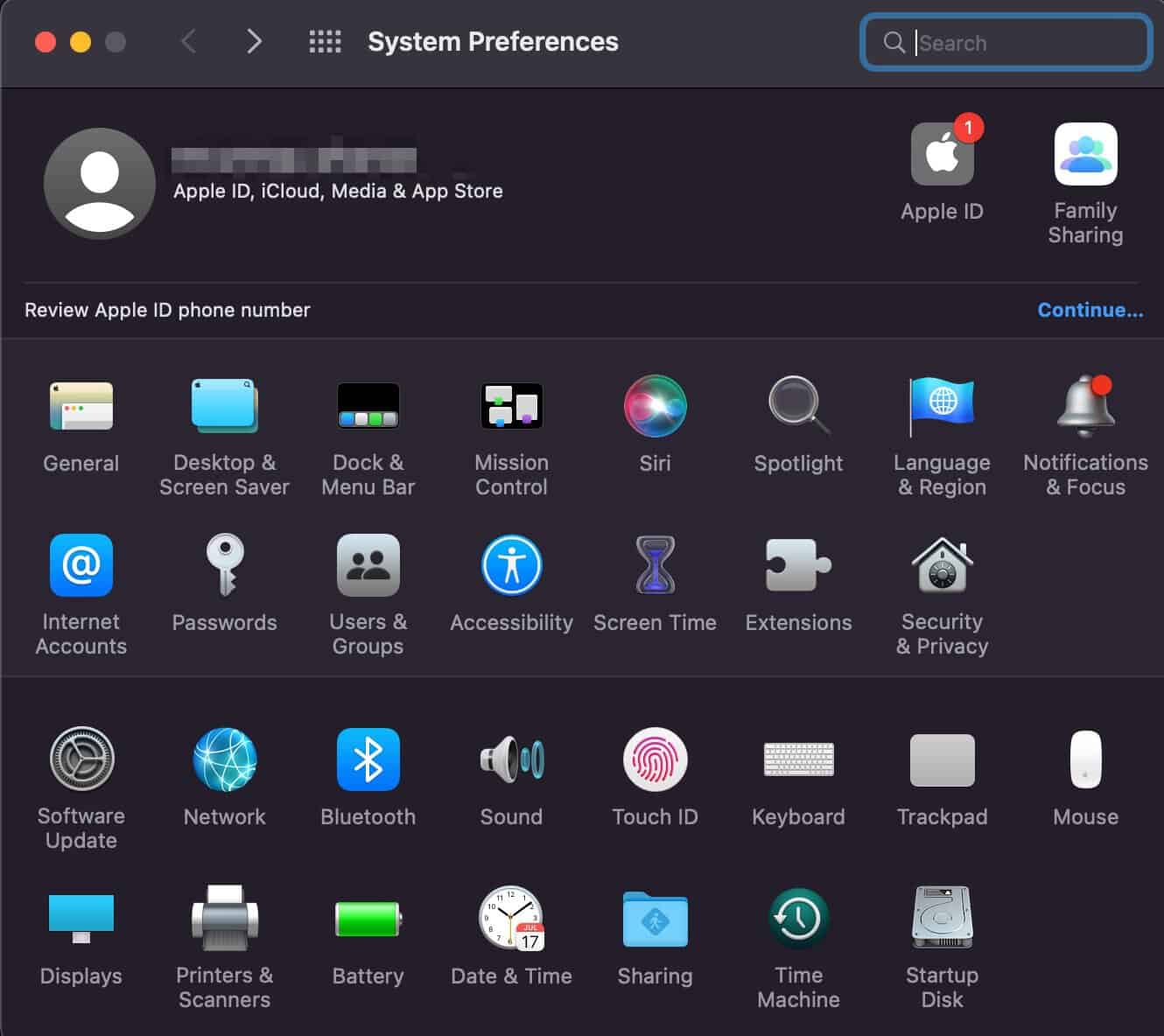
    Step 1: Go to System Preferences on your MacOS.

    system preferences macOs

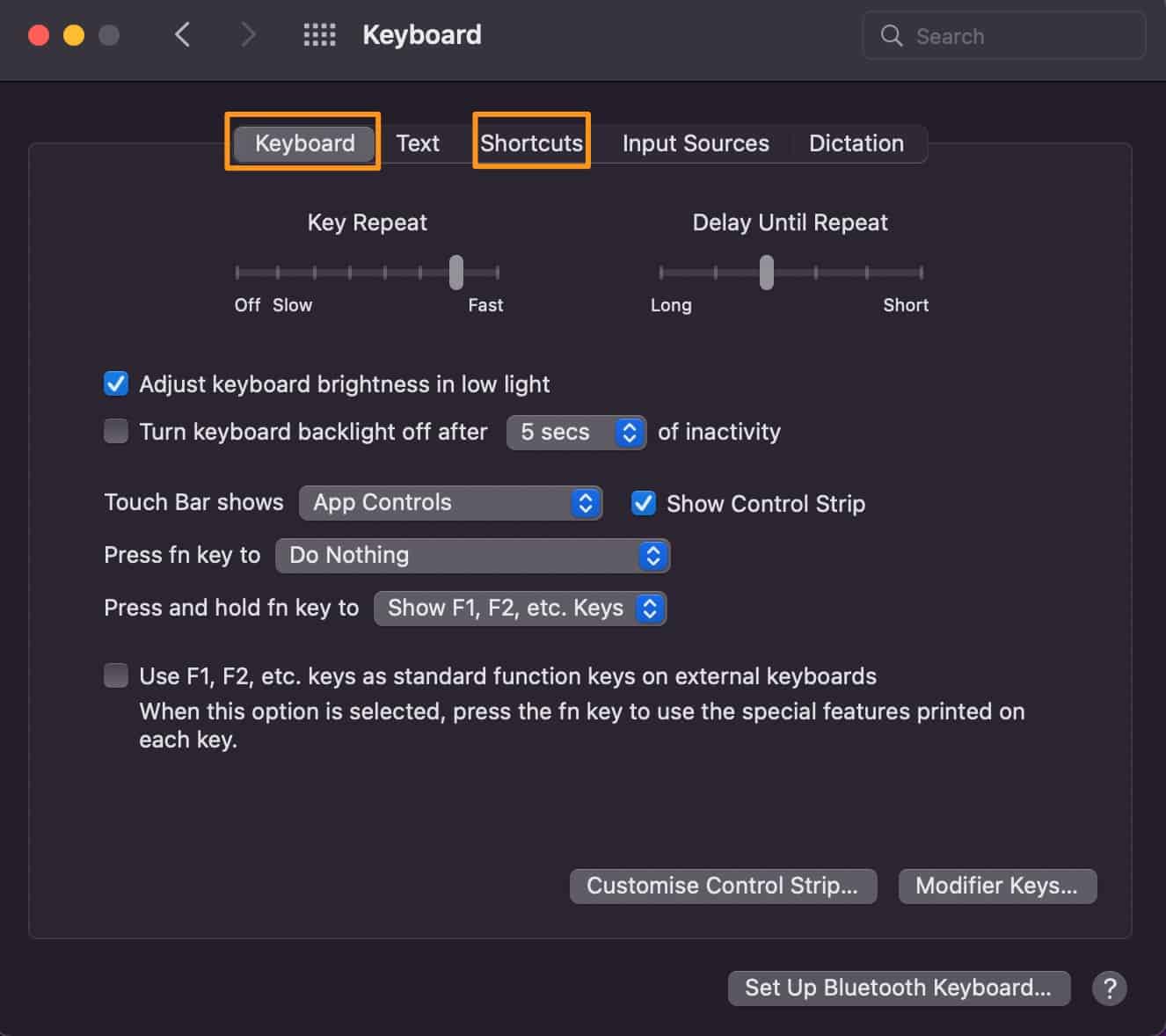
    Step 2: Open the Keyboard app and go to Shortcut. You will find the keyboard app in the system preferences option’s third row. Once in the “Keyboard” settings, Head over to the shortcut from the available menu bar.

    could not find the specified shortcut

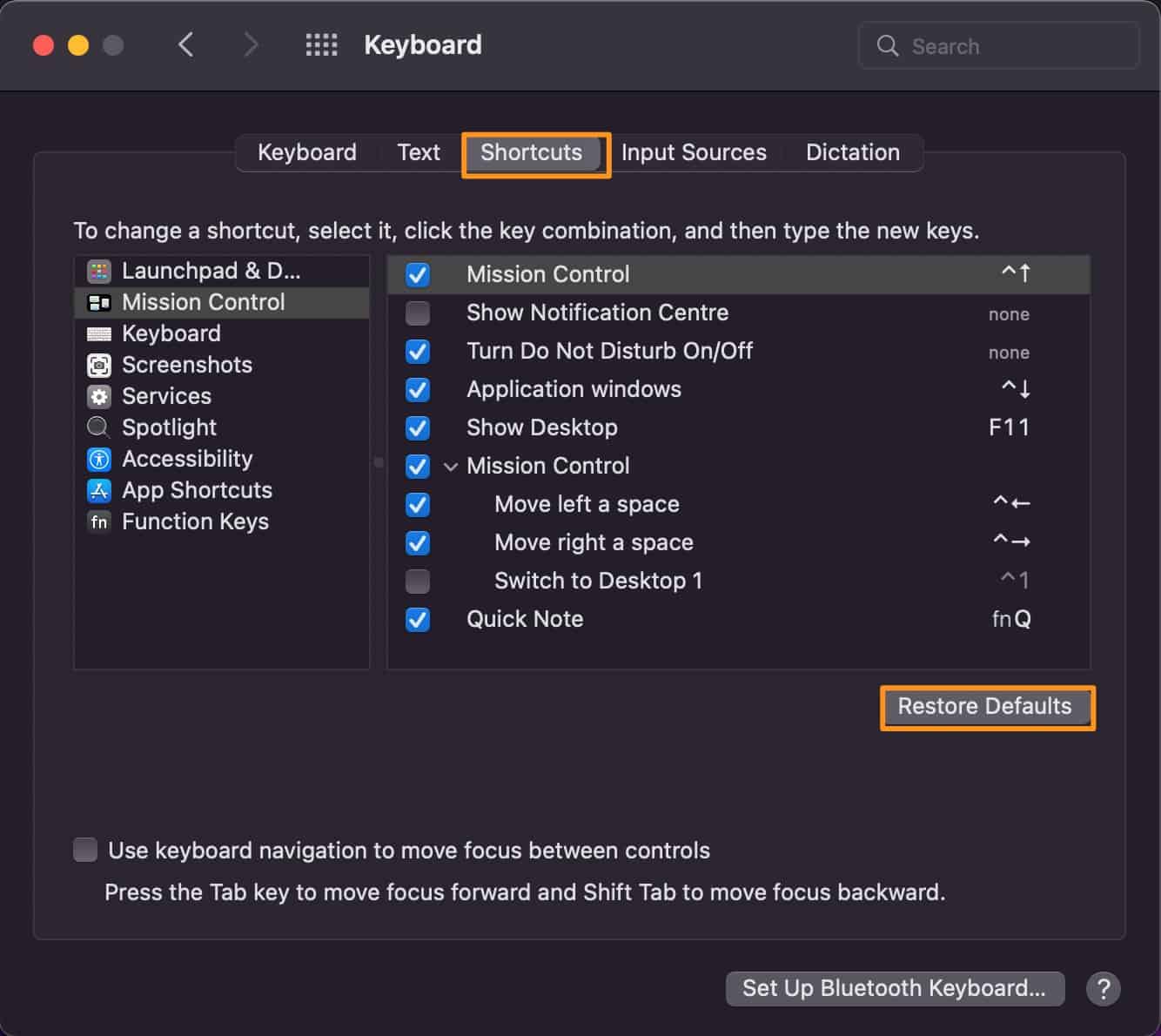
    Step 3: Finally, Click on the “Restore Defaults” option to solve any application or key combination conflicts for all the system shortcuts. Here you can also set a custom combination of keys for any shortcut to make it unique.

    restore default shortcut options iOS

    Method 3: Reinstall the Application

    There might be a possibility that the application you are trying to open using the shortcut is already corrupt or has bad cache files. Cache files are quick-access files/data saved on your local device to easily access static files. this data might get corrupted due to auto-update failure or conflict between files. You can easily solve the issue by Reinstalling the app. Here are the steps.

    • Start your device and go to system settings.
    • Click on the application icon and delete the application.
    • Visit the official website or App Store to download the application again.
    • See if the issue is resolved.

    Method 4: Use System Cleaner/Antivirus Software

    There are many known System cleaner software available for MacOS and other devices. You can use free software to clean your system which will help you to get rid of bad cache files and other data. It can also help you to solve software conflicts that result in the errordomain=nscocoaerrordomain&errormessage=could not find the specified shortcut.&errorcode=4 error to occur on your device.

    Final Words:

    The “errordomain=nscocoaerrordomain&errormessage=could not find the specified shortcut.&errorcode=4″ is just another basis error that could occur on your Apple-based device. You can use simple troubleshooting methods like restarting your device or reinstalling the application to solve the error.

    Another great method to get rid of this error is by updating the MacOS itself to the latest version. This will ensure that all the frameworks are up to date and all the bugs/errors from previous software updates are fixed.

    Please let us know if you have any questions or queries regarding the article by commenting down below.

  • chrome://net-internals/#dns – How to Clear Your DNS Cache in Google Chrome

    chrome://net-internals/#dns – How to Clear Your DNS Cache in Google Chrome

    chrome://net-internals/#dns is a Google Chrome URL to Clear the DNS cache. The feature is not available in general settings and to edit the DNS cache you have to visit this URL. In this article, We will walk you step by step and guide you to clear your DNS cache in Google Chrome.

    Google Chrome is a popular web browser with over a billion users. Almost 80% of the internet is browsed using Google Chrome. Due to such heavy usage, every data is cached on Google Chrome to speed up the browsing. However, for some reason, if someone wants to Clear their DNS cache, it might get difficult as the process is a little complex. Thankfully, we have found an easy solution for you to clear your DNS cache on Google Chrome quickly.

    How to Clear DNS Cache?

    Clearing the DNS cache on Google Chrome is a lengthy process. To simplify this, we have broken down the whole process in a step-by-step guide with screenshots for easy understanding. Just follow the steps mentioned below and you will be able to Clear the DNS cache without any problem.

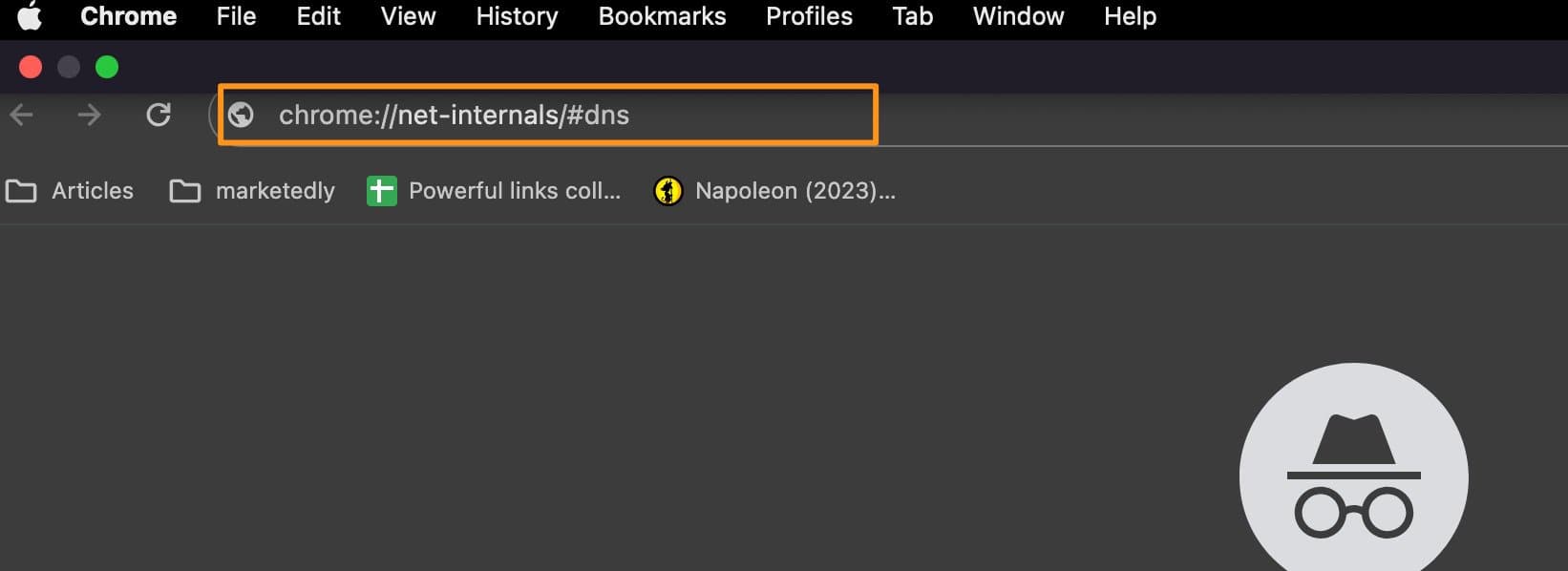
    Step 1: Visit chrome://net-internals/#dns

    On your PC or mobile, open Chrome browser and type in the following text in the URL bar “chrome://net-internals/#dns” (Without quotes).

    chrome net internals

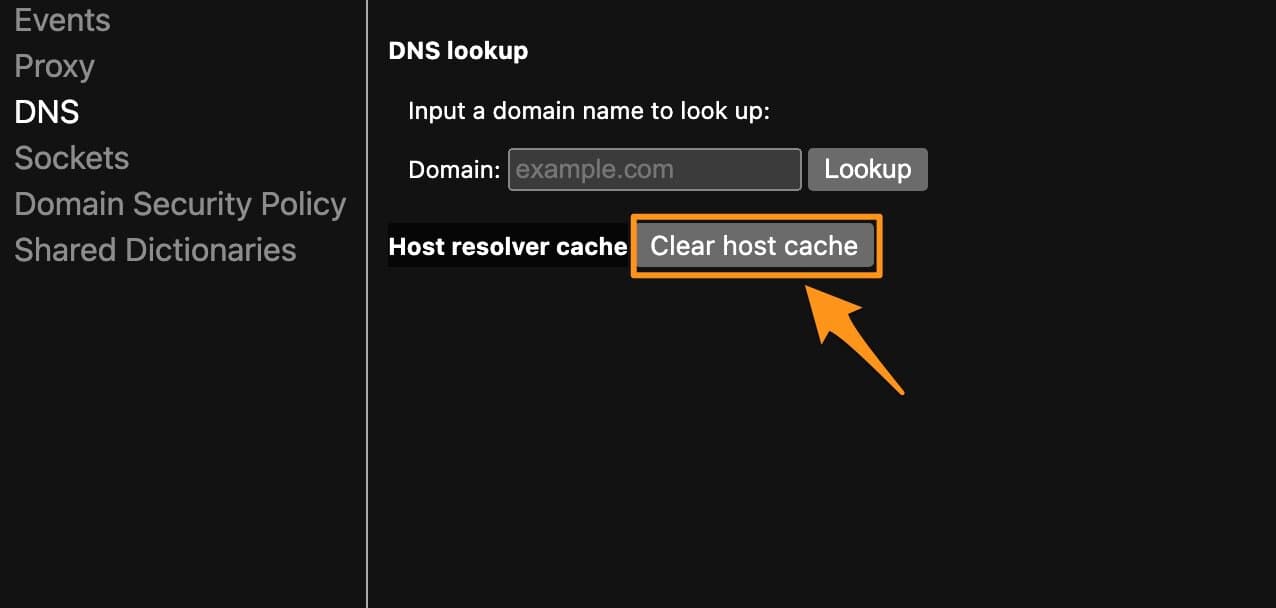
    Step 2: Clear Host Cache

    Under DNS Lookup, search for “Host resolver cache” and click the button next to it that says “Clear Host Cache”.

    clear host cache

    Step 3: Restart Chrome

    Once you click the “Clear Host Cache” button, nothing will happen and no successfully executed type message will be displayed but in the background, the process is done and you have successfully flushed the DNS cache on Chrome.

    Now, close the Chrome browser completely and relaunch it.

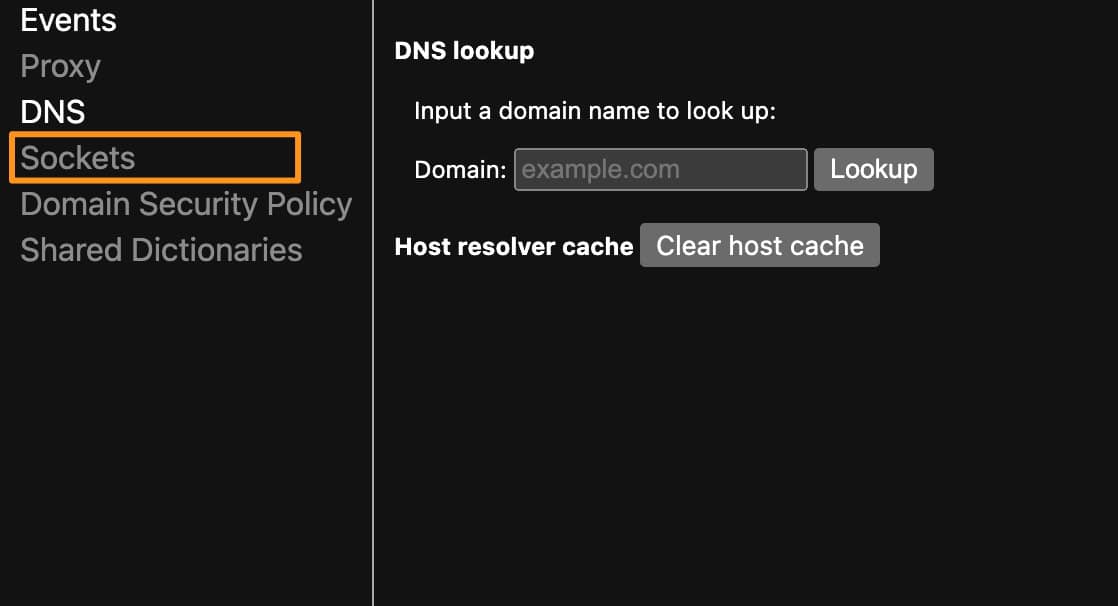
    Step 4: visit chrome://net-internals/#sockets

    The next step is to visit chrome://net-internals/#sockets on your Chrome browser by visiting the link directly or clicking the “Sockets” option in net internals.

    net internals sockets

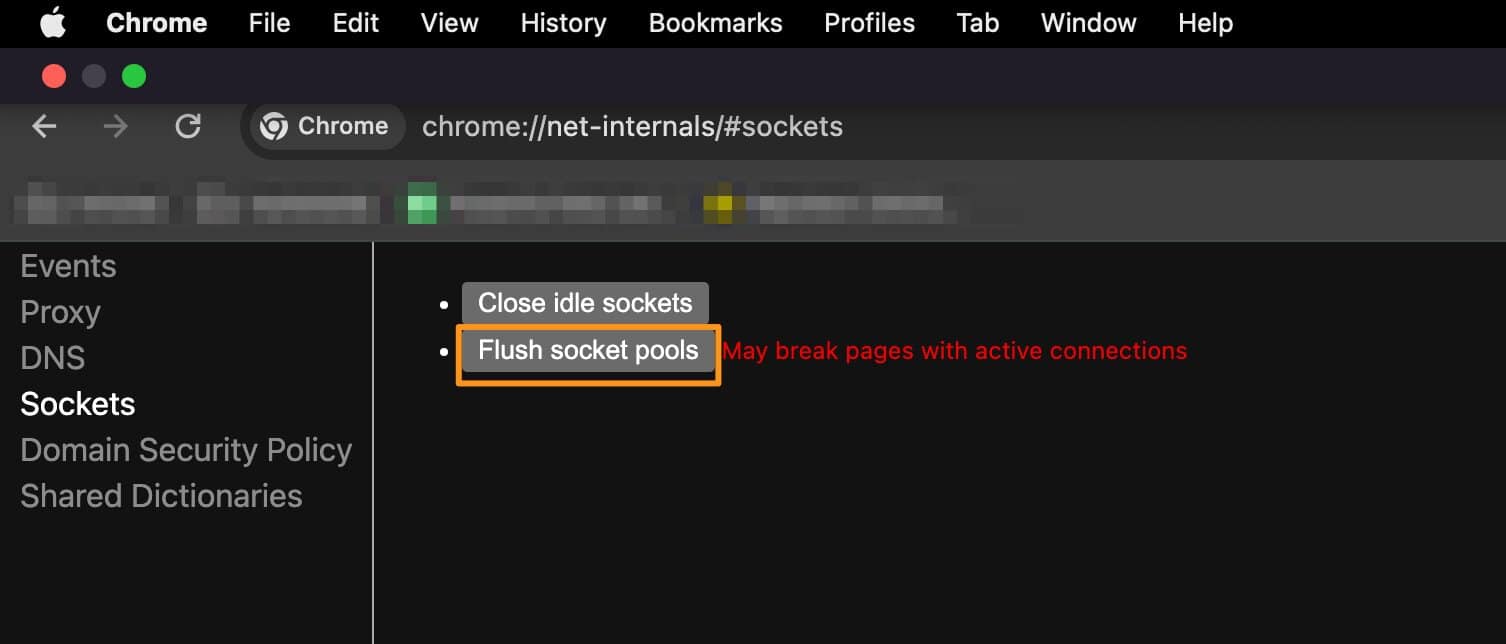
    Step 5: Flush Socket Pools

    under the Sockets tab, click the “Flush Socket Pools” button, and restart your Chrome browser.

    flush socket pools

    Now you have successfully flushed all the DNS cache on your browser and you can freely visit any website without getting DNS error or any other error.

    What is DNS Cache

    As of now, we know how to solve DNS-related errors by flushing the DNS cache but what exactly is the DNS cache? A DNS cache is a record of the IP address of the website you are visiting. Every domain name has a unique server IP to access the files DNS or Domain name server is responsible for mapping these domains to the relevant IP address.

    These records are generally stored on your browser such as Chrome. Sometimes, the server IP changes or the website is moved to a new domain, in such conditions, the Locally cached DNS is not able to detect the IP and you might get various DNS-related issues.

    Why you should Flush out the DNS cache?

    Flushing out the DNS cache means you are removing the existing DNS records of the websites that you visited in the past. If your previously visited website is not opening due to bad DNS cache then flushing the Cache is the best option.

    After flushing the Cache, whenever you visit a website, the browser will ask for the IP and other details again and update it in the DNS records locally.

    What is chrome://net-internals/?

    chrome://net-internals provides the browser activities-related information and helps debug various Socket, DNS, Domain Security Policy, and proxy-related issues. Net internals are very useful for troubleshooting issues like DNS problems, clearing bad proxies, reapplying proxy settings, flushing socket Pools, and Removing a domain from the Security Policy.

    The net internals network viewer has been moved to another URL chrome://net-export. You can visit this URL to start logging into the disk.

    How to Clear DNS Cache on Chrome Mobile App

    Android

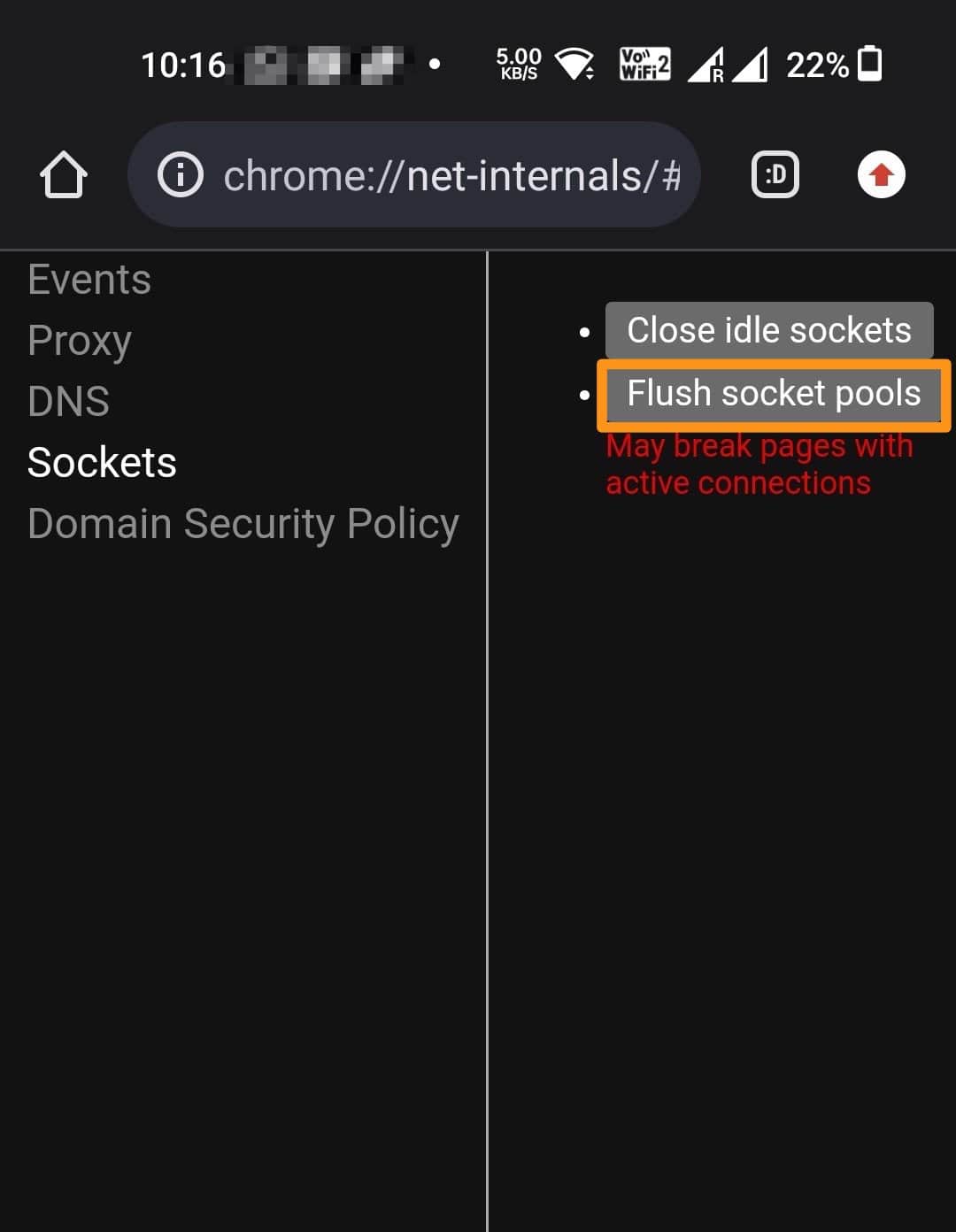
    Step 1: To Clear DNS Cache on the Chrome Android app open the app on your mobile and visit this URL – chrome://net-internals

    Step 2: Now click the DNS option from the left-side menu and click the “Clear host Cache” button.

    net-internals dns mobile

    Step 3: Visit the Sockets option from the same left-side menu and click the “Flush socket pools” button

    net internals flush socket pools.

    Step 4: Restart your Chrome browser by clearing it from the Recent Apps section and opening it again. This will reflect the changes you just made and all DNS cache data will be removed from the Chrome Android app.

    iOS

    The Chrome app doesn’t have a direct option to clear the DNS Cache from the browser. Instead, we will follow a different method to flush the DNS cache using iOS settings.

    Note: This will flush the DNS cache for all browsers.

    Step 1: On your iOS device, click the Settings app and choose General Settings.

    Step 2: Select the Transfer or Reset Phone option from the menu and select “Reset” when asked.

    Step 3: On the following window, click Reset Network Settings and confirm that you want to reset network settings if prompted.

    Finally, Open the Chrome Browser and visit the website that was previously giving you the DNS error. If it doesn’t work please restart your iOS device to apply the changes we made.

    Final Words

    chrome://net-internals/#dns is a URL that helps you to visit Chrome net internals to debug Chrome activity and make necessary changes to DNS and others. In DNS, it allows you to flush the DNS Cache and reset it to solve any DNS error on Google Chrome.

    Please let us know if you have any questions regarding chrome net internals or DNS cache by commenting below.

  • How to Make a Copy of a Word document – Microsoft Word

    How to Make a Copy of a Word document – Microsoft Word

    If you want to make a copy of a document in Microsoft Word to use the style or format without touching the original version of that file then you have arrived at the right article. We will discuss all the possible ways and methods that can help you to duplicate a word document without any hassle and continue your work easily.

    Microsoft Office is a powerful software that is used by all professionals and college students around the world. It is part of the Microsoft projects where they have developed great tools for PC such as Windows and gaming tools such as Xbox one for gamers. The software has multiple sub-programs such as Microsoft Word, Microsoft Excel, Powerpoint, and Outlook. These programs enable you to create documents, Presentations or just add data in a tabular format in Excel for a better representation. Microsoft Word is a widely used Software among all. because of its ease of use and friendly interface, the software is used to create all sorts of documents.

    In this article, we will help you to duplicate or make a copy of your Word document in just a few steps.

    Why Make a copy of a Word Document

    There can be many reasons to make a copy of the original word document. You might want to make a copy of the Word Document for multiple reasons, we are listing a few of those reasons below.

    • You want to copy the style and formatting of the existing document and use it for creating other such documents.
    • To Save the file to another device or to make a secondary backup that can be restored if you delete or lose the original copy of the word document.
    • If you work on the Document with your team and do not want to lose the original version of the file in case someone edits it.

    Whatever the reason may be, Copying and keeping the duplicate version of your Word Document can always come in handy and save you a lot of time in case of emergency.

    How to make a Copy of Single Page document in Microsoft Word

    Now that we have discussed the reasons to make a copy of a word file, let’s see how you can make a copy of a word document that has only one page or single page document. Here are the steps.

    • Open the file in Microsoft Word on your Laptop/PC
    • Use the combination of CTRL + A to select all the text.
    • Use CTRL + C to copy the content.
    • Now go to file >> New and create a new document.
    • On this new document, use CTRL + V to paste the content that you just copied, and click CTRL + S to save the document.

    How to make a Copy of a Word document in Microsoft Word

    Making a copy of a word document with multiple pages is as simple as the first method of making a copy of a single-page document. The steps might be different but you can easily duplicate the document by following this method.

    Step 1: Go to the folder of the original file that you want to copy.

    Step 2: Right-click on the file and select the copy option. Similarly, you can also click on the file to select it and then press CTRL + C to copy it.

    step 3: Now, in the same folder Right-click on the blank space and select the paste option from the menu. Similarly, You can also use the combination of CTRL + V to paste the file into the folder.

    That’s it, you have successfully created a copy of the original Microsoft Word File. Now you can open the file that you have just created and start editing it without hurting the content and formatting of the original file.

    Also Read:

    How To Unfreeze A Mouse on a Laptop

    How to Fix Not Registered on Network Error

    Google Drive Still Processing the Video

    Make duplicate Word Documents on Mac

    if you own a MacBook then also the method is the same and all you have to do is to copy and paste the document into the same folder or into a different folder of your choice. However, unlike Windows computers, the keys on your Macbook might differ and thus you can follow this tutorial

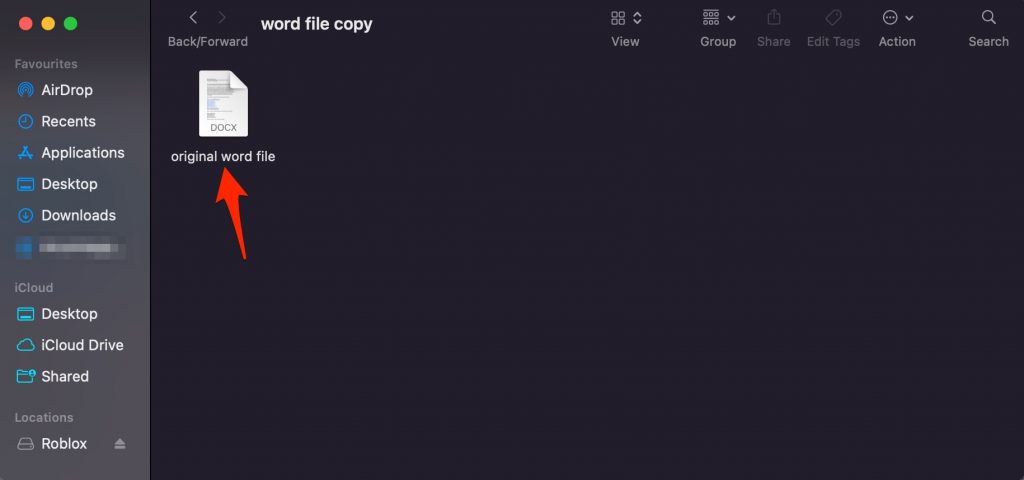
    Step 1: Open the folder where you have saved your original Word document that you want to make a copy of.

    microsoft word file


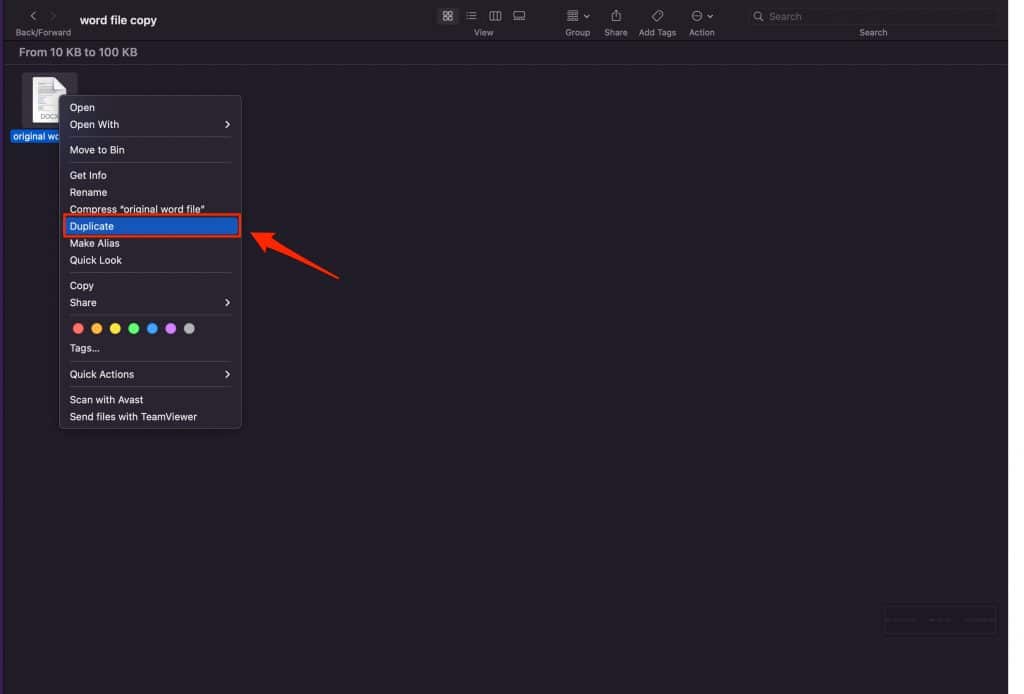
    Step 2: double-click on the file name and click on the “Duplicate” option from the list.

    make word document duplicate mac

    step 3: That’s it, you have successfully made a duplicate copy of a word document on Mac.

    original word file copy microsoft word mac

    However, if you want to make a copy of the file in some other folder then follow these steps.

    • Go to the folder on mac where you have stored the word document.
    • double-click on the file and select Copy.
    • Now, head over to the folder where you want that file to be added and again Double-click on the blank space and select the “Paste” option from the list.

    copy paste word document mac

    How to make a Word File Copy on Linux

    Similar to Windows and Mac, you can also copy and paste the file on Linux if you have a GUI. Simply follow these steps.

    • Go to the folder where you have stored the original Word file that you want to copy.
    • Right-click on the file name and select the Copy option from the list.
    • Now go to the folder where you want to add the copied file, Right-click on the blank space, and select the “Paste” option.

    Final Words

    If you don’t want to lose sensitive or important information on any Word document then making a copy or a backup is always a great option. It also always you to edit the duplicate file without any worries of losing any information while you are editing. Copying or duplicating files also helps you to copy the entire format and use it for future projects or Word documents by simply opening the duplicate file and starting the work.

    Please let us know if you still find it difficult to make a copy of a Word file in Microsoft Word on Windows 7,8,19 or Mac and Linux and we will happily help you.


  • How To Unfreeze A Mouse on Laptop – Working methods

    How To Unfreeze A Mouse on Laptop – Working methods

    A frozen mouse on your laptop might prevent you from performing important tasks on the machine. Many people find it difficult to just navigate through the options using the keyboard and it’s really not a handy method for regular users. If your mouse cursor is stuck and not moving or your touchpad is not responding properly then this article is for you.

    In this article, we will help you to understand the situations in which your mouse might freeze or stop working completely, and how you can easily fix this issue by self-diagnosis and troubleshooting methods that are mentioned in this post.

    Why My Mouse is not Working on My Laptop

    Before moving to the solutions, let’s first discuss the possible reasons for your mouse to stop functioning on your laptop. Most of the time, if a mouse is not moving then it’s not directly related to your touchpad or mouse being the culprit.

    There are multiple factors that might prevent your mouse from functioning properly and freeze it. These reasons might include the following.

    • Computer crashes or freezes itself.
    • You disabled the touchpad by mistake.
    • The mouse driver not working properly.
    • A third-party application is causing the problem.

    These are just a few reasons that might cause your mouse to not function properly or freeze completely. Below are the methods that you can use to resolve this issue on your own.

    #1. Restart your Laptop

    If you have not restarted your computer yet then we suggest you do that first and it might actually solve the issue. See, a lot of the time, our computers get frozen due to multiple background activities or tasks that are running. These tasks may overload your RAM and cause your system to slow down. So Please do a restart and see if it solves your problem, if not, then follow the next method.

    #2. Re-enable the Touchpad

    The most common reason for your mouse to freeze is that you pressed a key or combination of some keys that has locked your touchpad. This is a common function found on all laptops. This is actually a useful function in case you want the cursor to be locked in case you might accidentally move the cursor. However, many people don’t know about this and they are stuck if the mouse gets disabled by accident.

    To unfreeze a mouse, first check for the touchpad-like icon on some of the keys on your laptop. You might find the key on the top row of your keyboard. It’s generally a function key and depending upon the brand and manufacturer of your laptop, it might be F5, F6, F7, or F9. If there’s one, click it and see if it works. If it doesn’t then press the combination of Fn + the function key that has the trackpad icon. You can find the Fn key beside the Ctrl key in the bottom-left corner of your laptop.

    enable disabled touchpad windows

    #3. End Trackpad Background Process

    Every hardware and software that works with our laptop has a process running in the background. due to multiple reasons, the trackpad software might have frozen or become unresponsive which in turn prevents you from using the mouse. The best way to deal with this is by ending the Trackpad process which will reset it and any bugs and glitches caused by it.

    Here are the steps to end the Trackpad background process using the task manager and your keyboard.

    Step 1: Press and hold Alt + CTRL + DEL keys on your laptop and use the arrow keys on your laptop to toggle between options to select “Task Manager” and press enter.

    Step 2: Again use the down and up arrow keys to toggle between different processes and look for the process which has “Touchpad” text in it.

    Step 3: Select the task and Press E to end it.

    Step 4: Now restart your computer as restarting will automatically resume the task. Once you restart, see if the mouse is working on your laptop or not.

    #4. Update Mouse device settings

    Another major reason for your cursor to stop moving on your laptop or mouse to get stuck on your laptop is the disabled Mousepad properties. To fix this, follow these steps.

    Step 1: Launch the Run app by pressing Windows + R on your keyboard or by searching for Run app using the default windows search bar.

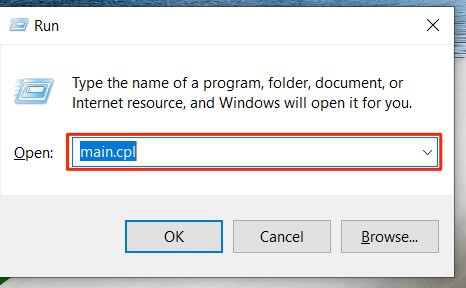
    Step 2: Enter “main.cpl” in the Run input box and hit enter.

    laptop mouse settings windows

    Step 3: Now head over to the device settings tab using the horizontal menu and select your mouse name under devices. Click Enable >> Apply >> Ok and exit the screen.

    Step 4: Finally, Restart your computer and see if the problem is resolved.

    #5. Update the drivers.

    Even after using all the methods that are given, if you are still not able to unfreeze your mouse on your laptop then you might want to update the mouse drivers. Sometimes, outdated or corrupt drivers might freeze your mouse on HP, Asus, or Acer laptops. Follow these steps to update your mouse drivers to the latest available ones.

    Press the Windows key on your keyboard and type “Mouse settings” in the default Windows search bar.

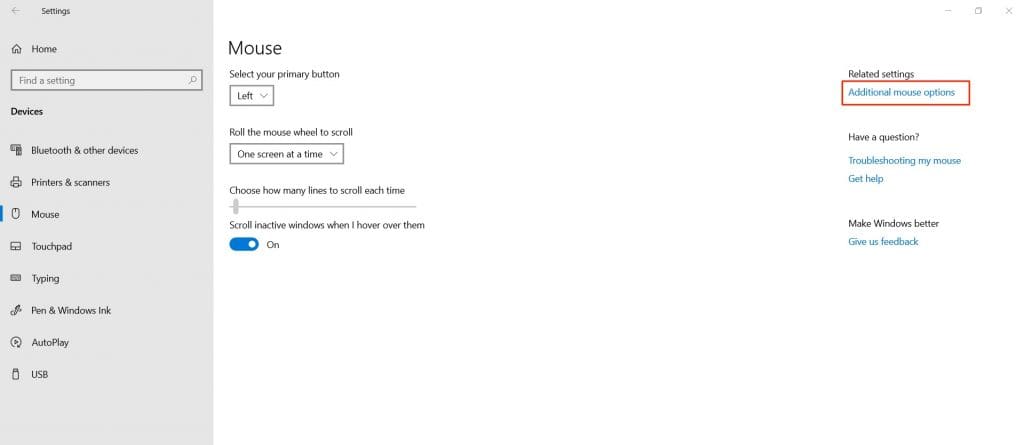
    Using the Tab button and arrow keys on your keyboard, head over to the Additional mouse options and press enter.

    unfreeze laptop mouse windows

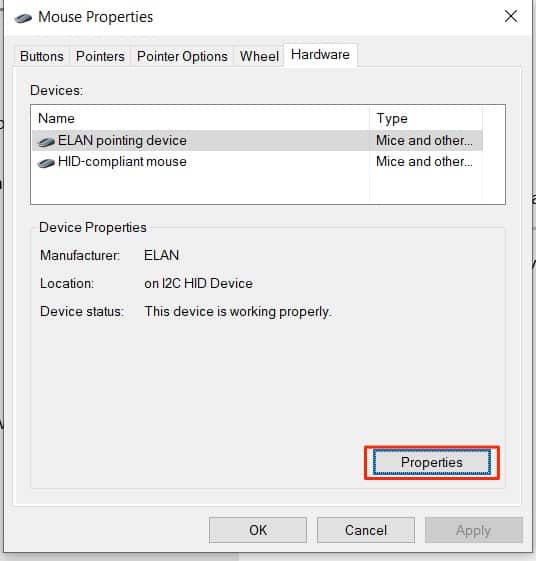
    Head over to the hardware tab by pressing “CTRL + Shift + Tab“. Using the arrow keys, click the Properties button.

    mouse touchpad properties

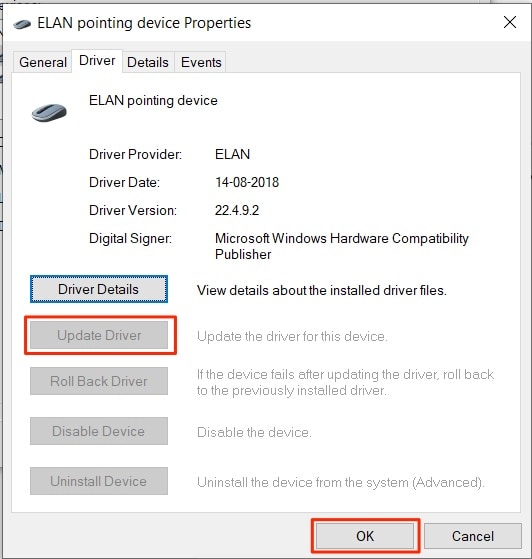
    Again, using the combination of CTRL + Shift + Tab, head over to the Driver tab. Use the arrow keys to navigate to the “Update Drivers” option.

    update mouse drivers windows

    If the driver update is available, then the button will appear bold, Just press enter and Windows will start searching for the latest available updates automatically. It will also download and install the updates if they are available.

    Once done, Restart your computer and see if the Mouse is working properly or not.

    Final Words:

    With a Frozen mouse on your laptop, it’s hard to navigate or perform any task. Thankfully, these are the working and easy-to-use methods that we are given in this article that will help you to get rid of a stuck mouse on your Laptop.

    Frozen mouse on HP, Asus, Acer, Windows, and Lenovo laptops is a common problems. However, using the methods mentioned above, you might easily resolve this issue on your own. If you still face the same problem then we recommended you contact the authorized service center of your laptop manufacturer for further assistance and they can help you to resolve the mouse not working on laptop issue.